If You’re looking for a good screen recording software for your Windows 10, this is the right article for you.
Nowadays, capturing your computer screen on Windows 10 is super easy as there are many tools available on the market. With so many free and paid options available, it can be overwhelming to beginners. This article will help you navigate the best free and easy screen recording software for Windows 10 you can try in 2025.
Below are our evaluation factors as normal.
- Ease of Use: How intuitive is the interface? Can you start recording with minimal setup?
- Features: Does it offer essential features like system audio recording, webcam overlay, and video editing capabilities?
- Performance: Does it capture smooth, high-quality footage without significant system impact?
- File Formats and Output Options: Does it support popular video formats (like MP4) and offer options for sharing your recordings?
By considering these factors, you can confidently select the best free screen recorder for your specific needs and start capturing your Windows 10 screen effortlessly.
1. ActivePresenter – Best Free Screen Recorder For Windows 10 without Watermark or Time Limit
On top of the list is Atomi ActivePresenter, an all-in-one free screen recorder for Windows 10 you can try. With ActivePresenter, you can record full screen, a specific area on the screen, a locked application or an opening window with the audio from your microphone, system sound as well as the option to turn on web cam recording too. These are the most important features of a good screen recorder and ActivePresenter has it all. Added to that, you can also edit your screen video in its video editor where you can trim video, crop video, add text to video, zoom and pan video and so on. There are countless editing features in ActivePresenter you can use for free, even exporting your project into mp4, AVI or MVK and upload to YouTube or other video sharing platforms.
Learn more about ActivePresenter here!
ActivePresenter Pros
- It lets you capture your computer screen and webcam separately. This is a very useful feature for tutorial video makers as you can select show or hide your webcam when editing video.
- ActivePresenter allows you to capture and edit your mouse cursor effect. This feature is gold as it can help you drive your audience attention to the point you want on the screen video.
- You can edit your video and audio in its free video editor.
- Exporting your project into a video format without watermark or time limit.
- You can use ActivePresenter to create tutorial videos, software demo or even an complete e-learning course if you want. Off course, these premium features are not free one.
ActivePresenter Cons
- You need to edit your screen recording and export your project manually as the program will not render your screen video in real time.
- Free version of ActivePresenter is only available for personal use.
ActivePresenter Pricing Plans
As said above, free version of ActivePresenter is only available for commercial use. If you want to use it for commercial purpose, you may need to purchase a license which comes in following plans:
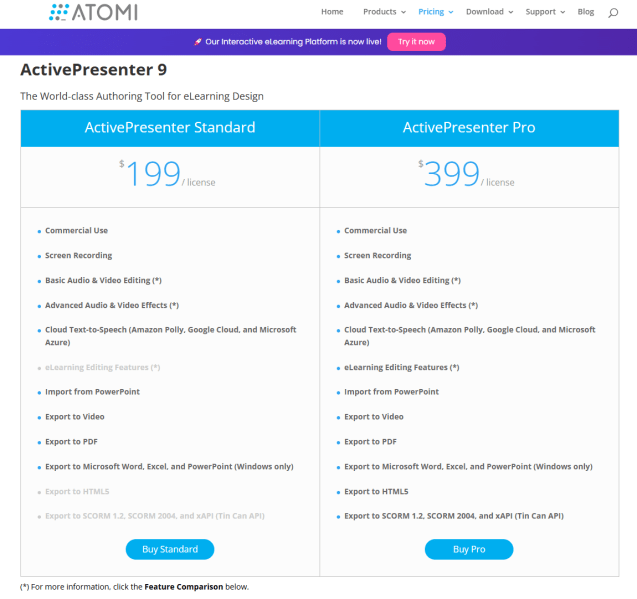
They do offer educational and goverment license but you may need to double check on their website as the information may change over time.
2. OBS Studio – Best Free Screen Recorder for Streamers on Windows 10
OBS Studio is a powerful and versatile open-source software that reigns supreme as the top free screen recording solution for streamers and content creators. It offers unparalleled flexibility and control over your streaming setup. Its user-friendly interface, combined with its powerful features, empowers you to create professional-looking streams without breaking the bank. Whether you’re a beginner or a seasoned pro, OBS Studio provides the tools you need to elevate your streaming experience.
For me, obs studio is quite easy to use, the interface is friendly and full of features. However, if you are new to screen recording software, it can be a bit confusing. For example, you will not know how to setup it correctly, or where to add screen recording source, webcam, audio input etc. By the way, there are countless tutorial videos about OBS STUDIO on YouTube you can watch if you want to try this free and open source software. Below is an example:
OBS Studio Pros
- Completely free to use.
- Fully featured software for screen recording and livestreaming
OBS Studio Cons
- No mouse cursor effect.
- No video and audio editing tools.
- No technical support from developers.
How to choose the best screen recorder for your needs?
As both of the abve mentioend tools are free one, you can install both on your computer. They won’t take lots of resources on your computer. When you want record gameplays or livestreams, try OBS Studio as it offers real time rendering and livestreaming options.
If you want to make software tutorial videos, use ActivePresenter since you can edit your video later in its free video editor.
The Bottom Line
Effortlessly capture your Windows 10 screen with these top-rated free tools. Whether you’re creating tutorials, recording presentations, or simply want to share what’s on your screen, these user-friendly options make screen recording a breeze. No need to break the bank – these powerful tools are completely free and offer all the essential features you need to get started.
 Elearning Supporter
Leave a comment