In today’s digital-first world, screen recording has become indispensable for creating tutorials, gaming content, presentations, and remote collaboration. While desktop screen recording software often offers advanced features, online screen recorders provide instant access without downloads, making them ideal for quick tasks or users with limited storage.
This article ranks the top 5 free online screen recorders that require no installation, evaluates their pros and cons, and highlights ideal use cases. Halfway through, we’ll also explore ActivePresenter—a powerful desktop-based free screen recorder—for users needing advanced editing and customization.
Key Features to Look For in Online Screen Recorders
- No Installation: Runs directly in browsers like Chrome, Firefox, or Edge.
- Recording Flexibility: Captures screen, webcam, audio, or combinations.
- Editing Tools: Trim, annotate, or add captions.
- Export Options: MP4, GIF, or cloud-sharing links.
- Privacy: No watermarks or data retention.
Top 5 Best Free Online Screen Recorders (No Installation Required) + A Desktop Alternative
1. ScreenPal
ScreenPal (formerly Screencast-O-Matic) is a versatile screen recording and video editing platform that caters to a wide range of users, from educators and businesses to individuals creating tutorials or sharing information. It offers both a browser-based recorder and a desktop application, providing flexibility and accessibility.

What is ScreenPal?
ScreenPal allows users to record their screen, webcam, or both simultaneously. It provides tools for basic video editing, including trimming, adding music, and annotations. It also offers hosting and sharing options, making it a comprehensive solution for creating and distributing video content.
Pros of ScreenPal:
- Multiple Recording Options: ScreenPal offers both a browser-based recorder (good for quick captures) and a more feature-rich desktop application (for more complex recordings and editing). This flexibility is a major advantage.
- User-Friendly Interface: The interface is generally intuitive, making it easy for beginners to get started. The layout is clean and well-organized, and the controls are straightforward.
- Affordable Pricing: ScreenPal offers competitive pricing plans, including a free plan with limitations, making it accessible to users with varying budgets. The paid plans offer good value for the features provided.
- Decent Editing Tools: While not a full-fledged video editor, ScreenPal provides a good set of basic editing tools. You can trim videos, add music, insert captions, and use annotations to enhance your recordings.
- Hosting and Sharing Options: ScreenPal provides hosting for your videos, making it easy to share them via link, embed them on websites, or publish them to social media platforms. This simplifies the distribution process.
- Support for Multiple Platforms: The desktop application is available for Windows and Mac, and the browser recorder works on most modern browsers, ensuring broad compatibility.
- Good Customer Support: ScreenPal generally receives positive reviews for its customer support, with helpful resources and responsive assistance.
- Automatic Captions: ScreenPal offers automatic captioning, which is a great feature for accessibility and improving viewer engagement.
Cons of ScreenPal:
- Free Plan Limitations: The free plan has limitations on recording length, features, and storage. This can be restrictive for users with more demanding needs.
- Limited Advanced Editing Features: While the editing tools are decent, they are not as comprehensive as dedicated video editing software. If you need advanced editing capabilities, you’ll likely need to use a separate program.
- Watermark on Free Plan: Videos created on the free plan include a ScreenPal watermark. This can be a drawback for some users.
- Dependence on Internet Connection (for Browser Recorder): The browser-based recorder requires a stable internet connection. Interruptions can affect the recording process.
- Potential Learning Curve (for Desktop App): While generally user-friendly, the desktop application might have a slight learning curve for some users, especially those new to video editing.
- Storage Limits (Even on Paid Plans): Even the paid plans have storage limits, so heavy users might need to consider alternative storage solutions or upgrade to higher-tier plans.
- Occasional Performance Issues: Some users have reported occasional performance issues, such as lag or freezing, particularly when working with larger video files.
Overall:
ScreenPal is a solid choice for users who need a versatile and affordable screen recording and video editing platform. Its user-friendly interface, multiple recording options, and decent editing tools make it a good fit for educators, businesses, and individuals creating tutorials or sharing information. However, the limitations of the free plan and the lack of advanced editing features should be considered. If you need a simple and cost-effective solution for creating and sharing screen recordings, ScreenPal is definitely worth considering. If you need more advanced editing capabilities or have very high storage needs, you might want to explore other options.
2. Loom
What is Loom?
Loom allows you to record your screen, your webcam, or both simultaneously. Once you’re done recording, the video is instantly uploaded to Loom’s platform, and you get a shareable link. This eliminates the need for large file attachments and streamlines the process of sharing visual information. It integrates well with various platforms, enhancing its usability.
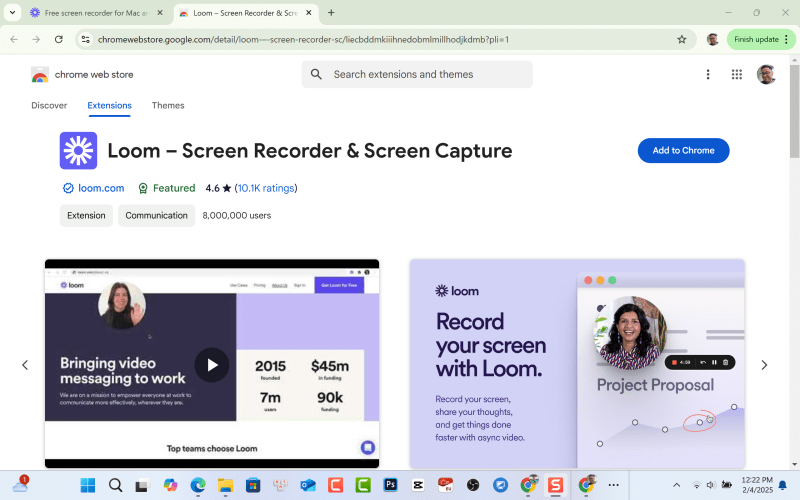
Pros of Loom:
- Ease of Use: Loom’s interface is incredibly intuitive. Recording a video is as simple as clicking a button. The platform handles the uploading and sharing, making the entire process seamless.
- Speed and Efficiency: Loom is designed for quick communication. The instant sharing link allows you to get your message across rapidly, eliminating the back-and-forth often associated with text-based communication.
- Asynchronous Communication: Loom allows for asynchronous communication, meaning the recipient can watch the video at their convenience. This is especially helpful for teams working in different time zones.
- Improved Clarity: Visual communication is often more effective than text. Loom lets you show rather than just tell, leading to better understanding and reduced misunderstandings.
- Cross-Platform Integration: Loom offers extensions for Chrome and other browsers, as well as desktop and mobile apps, making it accessible across devices. Integrations with Slack, Gmail, and other tools further enhance its workflow.
- Free Plan Available: Loom offers a free plan with limitations, allowing users to try the platform before committing to a paid subscription. This is great for individuals or small teams with basic needs.
- Engagement Features: Loom offers features like viewer reactions and comments, allowing for feedback and engagement with your videos.
Cons of Loom:
- Limited Free Plan: While Loom offers a free plan, it has limitations on recording length and the number of videos you can store. This can be a significant drawback for heavy users.
- Reliance on Internet Connection: Because Loom is a cloud-based platform, you need a stable internet connection to record and share videos. Issues with your internet can disrupt the process.
- Storage Costs: If you need to store a large number of videos, the cost of Loom’s paid plans can add up. Consider your storage needs before committing.
- Privacy Concerns (Potentially): Sharing videos via link means anyone with the link can potentially view the content. While you can adjust privacy settings, it’s important to be mindful of what you’re recording and who has access.
- Limited Editing Features: Loom’s editing features are basic. If you need to make extensive edits to your videos, you’ll likely need to use a separate video editing tool.
- Video Length Restrictions: Even on paid plans, there might be limits to the length of videos you can record, depending on the plan you choose. Longer recordings might need to be broken down into segments.
- Dependence on Loom’s Platform: Your videos are stored on Loom’s servers. If Loom’s service experiences downtime or shuts down, you could lose access to your videos.
Overall:
Loom is a powerful tool for quick and easy video communication. Its intuitive interface and instant sharing make it a great choice for teams and individuals who need to communicate visually. However, the limitations of the free plan and the potential costs of paid plans should be considered. If you need a tool for short, informal videos and value ease of use, Loom is an excellent option. If you require more advanced features, longer recordings, or more control over storage, you might want to explore other options.
3. Apower Free Online Screen Recorder
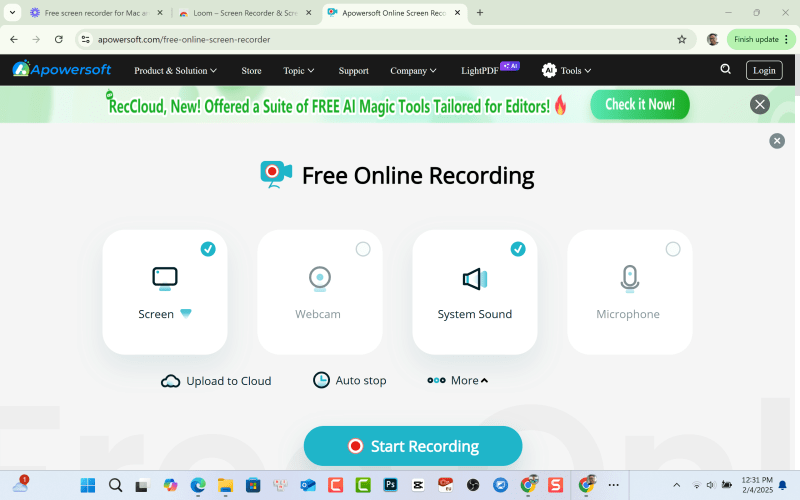
Apowersoft Free Online Screen Recorder is a web-based tool that allows users to capture their screen activity, webcam, and audio. It aims to provide a simple and accessible solution for creating screen recordings without requiring software downloads or installations.
What is Apowersoft Free Online Screen Recorder?
Apowersoft’s free online screen recorder works directly within your web browser (though it might require a small launcher download for some features). It allows you to select the area of your screen to record, capture audio from your microphone or system sounds, and even include your webcam feed. It’s designed for quick captures and sharing.
Pros of Apowersoft Free Online Screen Recorder:
- Ease of Use: The interface is generally user-friendly and intuitive, making it relatively easy to start recording quickly, even for beginners. The controls are straightforward.
- No Installation Required (Mostly): Being a web-based tool, it eliminates the need for large software downloads and installations, making it accessible from any computer with an internet connection. While a small launcher might be needed, it’s still a lighter install than full software.
- Free to Use: The basic screen recording functionality is offered for free, making it a budget-friendly option for users with basic needs.
- Customizable Recording Area: You can select a specific region of your screen to record, allowing for focused captures and avoiding unnecessary content in your videos.
- Multiple Recording Modes: It typically offers options to record the full screen, a custom area, or even just a specific application window.
- Webcam Recording: Including your webcam feed in your screen recordings is easily accomplished, which is great for creating tutorials or adding a personal touch to your videos.
- Audio Recording: Capturing audio from your microphone and/or system sounds is supported, ensuring that your recordings have the necessary audio component.
- Output Formats: Apowersoft usually offers various output formats for your recordings, giving you some flexibility in how you save and share your videos.
Cons of Apowersoft Free Online Screen Recorder:
- Internet Dependence: As a web-based tool, it heavily relies on a stable internet connection. Interruptions can disrupt the recording process.
- Limited Features: Compared to dedicated screen recording software, Apowersoft’s free online recorder typically offers fewer features. Advanced editing options are usually not included.
- Launcher Requirement (Sometimes): While advertised as “no installation,” in some cases, a small launcher application might be required to access full functionality. This can be a minor inconvenience.
- Potential Browser Compatibility Issues: Web-based tools can sometimes have compatibility issues with certain browsers or operating systems. This can lead to a frustrating experience.
- Watermark (Potentially): Free versions of online recorders often include a watermark on the recorded videos. This can be a drawback for users who want clean, professional-looking videos.
- Limited Recording Time (Potentially): Free online recorders sometimes impose limits on the length of recordings. This can be a problem for users who need to record longer videos.
- Privacy Concerns (Potentially): Because the recordings are processed online, there might be potential privacy concerns, especially if you are recording sensitive information. It’s important to review Apowersoft’s privacy policy.
- Occasional Performance Issues: Some users have reported occasional performance issues, such as lag or freezing, especially when recording high-resolution video or using older hardware.
Overall:
Apowersoft Free Online Screen Recorder is a decent option for users who need a quick and easy way to capture their screen activity without installing any software (for the most part). Its user-friendly interface and basic recording features make it suitable for simple tasks like creating short tutorials or capturing gameplay footage. However, the reliance on an internet connection, limited features, potential watermark, and potential privacy concerns should be considered. If you need more advanced features, longer recording times, or greater control over your recordings, dedicated screen recording software might be a better choice. For quick, basic captures, though, Apowersoft can be a helpful tool.
4. Screencastify
Screencastify is a popular Chrome extension that allows users to record, edit, and share screen recordings directly from their browser. It’s designed for simplicity and ease of use, making it a favorite among educators, students, and anyone who needs to quickly create and share video content.

What is Screencastify?
Screencastify lives within your Chrome browser, adding a convenient recording button. It lets you record your screen, your webcam, or both simultaneously. After recording, Screencastify provides basic editing tools and easy sharing options, primarily focused on integration with Google Drive.
Pros of Screencastify:
- Seamless Chrome Integration: Being a Chrome extension, Screencastify integrates seamlessly with the browser, making it incredibly convenient to start recording. No separate application is needed.
- Ease of Use: Screencastify is known for its user-friendly interface. Recording a video is as simple as clicking the extension button and selecting your recording options.
- Quick Sharing to Google Drive: Screencastify’s tight integration with Google Drive makes sharing your recordings a breeze. Videos are automatically saved to your Drive, and you can easily share them via link or embed them.
- Basic Editing Tools: While not a full-fledged video editor, Screencastify offers basic editing tools that allow you to trim your recordings, add text, and highlight important areas. This is enough for basic clean-up and annotation.
- Webcam Recording: Including your webcam feed is easily accomplished, which is great for creating tutorials, presentations, or adding a personal touch to your videos.
- Offline Recording (Limited): Screencastify offers some limited offline recording capabilities, which can be useful in situations with unreliable internet access.
- Free Plan Available: Screencastify offers a free plan with limitations, allowing users to try the extension before committing to a paid subscription.
- Annotation Tools: During recording, you have access to simple annotation tools like pens and highlighters, which can be useful for emphasizing key points.
Cons of Screencastify:
- Chrome Dependency: Being a Chrome extension, Screencastify only works within the Chrome browser. This limits its use on other browsers or operating systems.
- Limited Free Plan: The free plan has limitations on recording length and features. The watermark on free plan recordings can also be a drawback.
- Basic Editing Features: The editing tools are quite basic. If you need more advanced editing capabilities, you’ll need to use a separate video editing program.
- Storage Primarily in Google Drive: While integration with Google Drive is a pro, it also means your storage is tied to your Google Drive account. If you have limited Drive space, this can be a problem.
- Internet Dependence (for Upload and Sharing): While recording can sometimes be done offline, uploading and sharing your videos requires a stable internet connection.
- Occasional Performance Issues: Some users have reported occasional performance issues, such as lag or freezing, particularly when recording high-resolution video or using older hardware.
- Limited Output Options: Screencastify’s output options are primarily geared towards Google Drive. You might have limited control over the video format or resolution.
Overall:
Screencastify is a great tool for quick and easy screen recording, especially for those who rely heavily on the Chrome browser and Google Drive. Its seamless Chrome integration, user-friendly interface, and easy sharing features make it ideal for educators and anyone who needs to create and share short video tutorials or explanations. However, the limitations of the free plan, the Chrome dependency, and the basic editing tools should be considered. If you need more advanced features, longer recording times, or cross-browser compatibility, other screen recording software might be more suitable. For quick, simple captures within the Chrome environment, Screencastify is a very convenient tool.
5. FlexClip
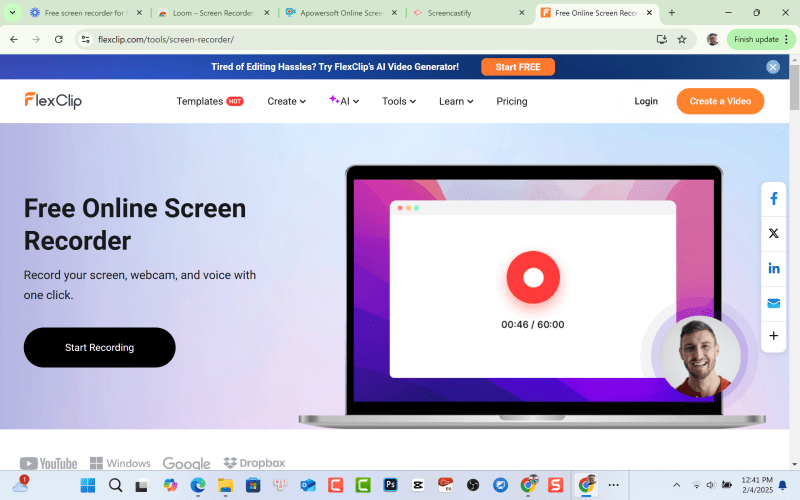
FlexClip is an online video editor with a built-in screen recorder. It aims to be a one-stop shop for creating and editing videos, offering a range of features from basic trimming and text overlays to more advanced animations and transitions. While the screen recorder is a component of the larger video editor, it functions as a standalone tool as well.
What is FlexClip?
FlexClip is a web-based video editing platform that includes a screen recorder. It allows you to record your screen, webcam, or both, and then immediately jump into the editor to refine your recording. The platform is designed to be user-friendly, even for those with no prior video editing experience.
Pros of FlexClip:
- All-in-One Platform: FlexClip combines screen recording and video editing into a single platform. This eliminates the need to switch between different applications, streamlining the workflow.
- User-Friendly Interface: FlexClip’s interface is generally intuitive and easy to navigate. The drag-and-drop interface makes adding and manipulating elements straightforward.
- Decent Editing Features: FlexClip offers a good range of video editing features, including trimming, cutting, adding text and titles, transitions, animations, music, and even stock footage.
- Stock Media Library: Access to a library of royalty-free stock footage, music, and sound effects is a significant advantage. This can save time and effort in finding suitable media for your videos.
- Templates: FlexClip offers a variety of pre-made video templates that can be customized to create professional-looking videos quickly. This is great for beginners or those short on time.
- Multiple Export Options: FlexClip supports various export resolutions and formats, allowing you to optimize your videos for different platforms and devices.
- Cloud-Based: Being a web-based platform, FlexClip is accessible from any computer with an internet connection. Your projects are saved in the cloud, so you can access them from anywhere.
- Free Plan Available: FlexClip offers a free plan with limitations, which is a good way to test the platform before committing to a paid subscription.
Cons of FlexClip:
- Internet Dependence: As a web-based tool, FlexClip requires a stable internet connection. Slow or unreliable internet can significantly impact the editing experience.
- Limited Free Plan: The free plan has limitations on video length, features, and export quality. A watermark is also present on free plan videos.
- Performance Issues: Some users have reported occasional performance issues, such as lag or slow rendering, especially when working with larger video files or complex projects.
- Limited Advanced Editing Features: While FlexClip offers a decent set of features, it may not be as comprehensive as dedicated video editing software. Advanced features like keyframing or complex effects might be lacking.
- Subscription Costs: While there’s a free plan, access to all features and higher export quality requires a paid subscription. The cost of the subscription should be considered.
- Occasional Bugs: As with any software, FlexClip can occasionally experience bugs or glitches. This can be frustrating, especially when working on important projects.
- Audio Editing Limitations: While FlexClip allows you to add music and sound effects, the audio editing features are not as robust as those found in dedicated audio editing software.
Overall:
FlexClip is a good option for users who need a versatile and easy-to-use online video editor with a built-in screen recorder. Its user-friendly interface, range of editing features, stock media library, and templates make it suitable for creating a variety of video content, including tutorials, marketing videos, and social media posts. However, the reliance on an internet connection, limitations of the free plan, potential performance issues, and limited advanced editing capabilities should be considered. If you need a quick and convenient way to record and edit videos online, FlexClip is worth exploring. If you require more advanced editing features or have very demanding performance needs, dedicated video editing software might be a better fit.
Which Free Online Screen Recorder is for You?
Choosing the right free online screen recorder depends entirely on your specific needs and priorities. They all offer the core functionality of capturing your screen, but their strengths and weaknesses vary. To make your decision easier, consider these recommendations:
- For Quick, Simple Recordings and Sharing: If your primary need is to quickly capture short screen recordings and share them instantly (especially if you’re a Chrome user and already use Google Drive), Screencastify is an excellent choice. Its seamless Chrome integration and direct Google Drive uploads make it incredibly convenient.
- For Basic Editing and a Bit More Control: If you anticipate needing to do some light editing, like trimming or adding annotations, and want more control over output formats, Apowersoft Free Online Screen Recorder is a solid option. It offers a good balance of features and ease of use, though the potential launcher requirement should be noted.
- For Combining Recording with More Extensive Editing: If your workflow involves not just recording but also significant video editing, FlexClip is a strong contender. While its screen recorder is straightforward, the integrated video editor offers a surprisingly robust set of tools, along with stock media and templates.
- For Fast, Visual Communication: If your focus is on quick, asynchronous video messages, especially within a team setting, Loom is a great choice. Its emphasis on speed and easy sharing via links makes it ideal for this purpose. However, the limitations of the free plan should be kept in mind.
- If you need cross-platform compatibility and flexibility: While not strictly online, ScreenPal offers both online and desktop recording options, giving you more flexibility. The free plan is a good starting point, and the paid plans are quite affordable.
Ultimately, the best way to find the perfect screen recorder is to try a few. All of the tools mentioned above have free options, so you can experiment and see which one fits your workflow and preferences best. Don’t be afraid to test them out with a short recording and see how you like the interface, editing tools, and sharing options. Happy recording!
 Elearning Supporter
Leave a comment