Showing is often more effective than telling, screen recording software has become an indispensable tool. From creating detailed software tutorials and engaging educational content to capturing epic gaming moments and streamlining corporate training, the right screen recorder can make all the difference. While the market is crowded with options, many users believe they need to spend a small fortune to get powerful features. That’s simply not true.
The year 2025 brings with it a host of incredibly capable yet often overlooked screen recorders for Windows that offer premium features for free. These aren’t just basic tools; they are robust platforms that can rival their expensive counterparts. We’ve dug deep to find the hidden gems and the underrated champions that deserve your attention.
This guide will walk you through the top 5 most underrated free screen recorders for Windows in 2025. We’ll break down each software’s overview, key features, pros, cons, and pricing structure, so you can make an informed decision for your specific needs.
1. ActivePresenter 10: The All-in-One E-Learning Powerhouse
Overview
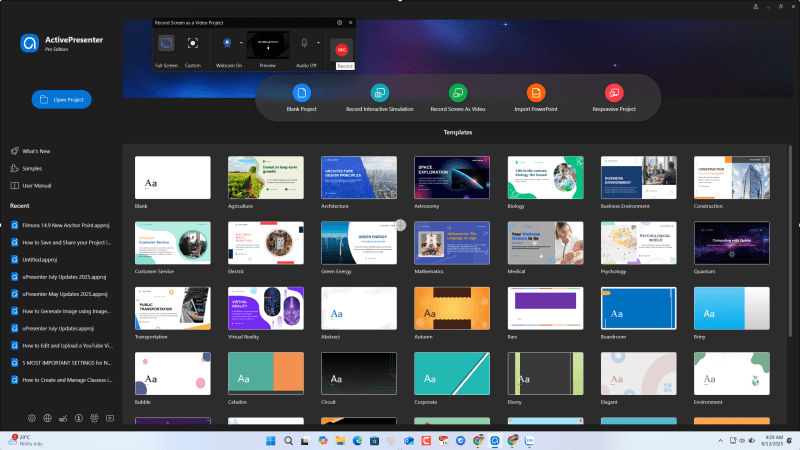
ActivePresenter by Atomi Systems is arguably the most powerful and feature-complete free screen recorder on this list, yet it remains surprisingly underrated in the general user community. It’s primarily designed as an all-in-one tool for creating e-learning content, but its capabilities extend far beyond that. It functions as a screen recorder, video editor, and interactive content authoring tool rolled into one seamless package. For educators, trainers, and tutorial creators, ActivePresenter is a dream come true, offering features that are typically locked behind expensive paywalls.
Key Features
- Full Motion & Smart Capture: Record your screen as a full-motion video for smooth playback, or use Smart Capture, which records screen activity as a series of interactive slides. This is perfect for step-by-step software simulations where users need to click and interact.
- Comprehensive Video Editing Suite: The free version includes a multi-track editor where you can cut, trim, split, and merge clips. You can also adjust speed, add blur effects, insert text-to-speech audio, and manage volume without any restrictions.
- Interactive Quizzes & Simulations: Go beyond simple recording. ActivePresenter allows you to add interactive elements like true/false questions, multiple-choice quizzes, fill-in-the-blanks, and drag-and-drop exercises directly into your video.
- Advanced Annotation Tools: It automatically generates smart annotations and callouts that follow your cursor and actions, saving you hours of manual editing time.
- Multiple Export Options (including HTML5): You can export your projects to various video formats (MP4, AVI, WMV, MKV). Critically, you can also export to HTML5, allowing you to create interactive web-based content that can be hosted online.
Pros
- Extremely Generous Free Version: No watermark and no time limit on standard video exports.
- All-in-One Solution: Combines screen recording, video editing, and e-learning authoring.
- Powerful Interactivity: The ability to create quizzes and simulations is unmatched in the free market.
- Professional Output: The final product looks clean and professional, suitable for corporate and educational use.
Cons
- Steep Learning Curve: The sheer number of features can be overwhelming for absolute beginners.
- Watermark on Some Exports: While standard video exports are watermark-free, exporting to formats like Word, PDF, Excel, and HTML5 in the free version will include a watermark.
Pricing Details
- Free Edition: Completely free for personal and non-commercial use. No time limits or watermarks on video outputs (MP4, AVI, etc.).
- ActivePresenter Standard ($199/license): Removes watermarks on advanced exports like HTML5, PDF, and Word. Adds more templates and advanced features.
- ActivePresenter Pro ($399/license): Unlocks all features, including advanced interactivity, branching logic, and reporting for Learning Management Systems (LMS).
Who is it Best For? Educators, corporate trainers, instructional designers, and anyone creating detailed software tutorials or interactive presentations.
2. OBS Studio: The Professional Open-Source Broadcaster
Overview
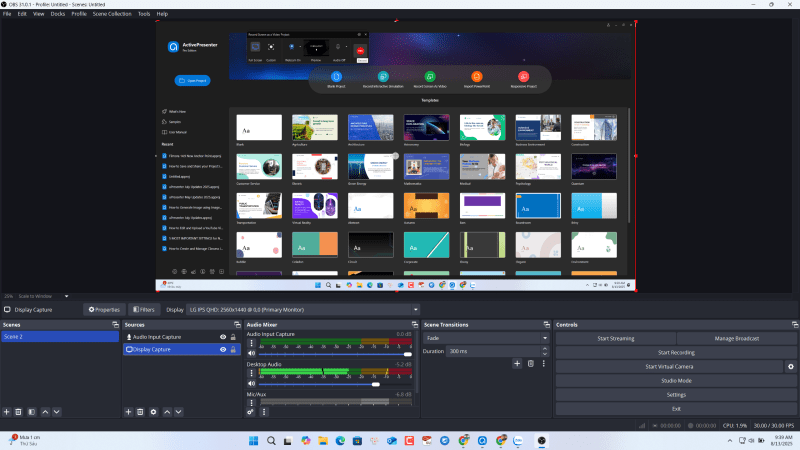
OBS (Open Broadcaster Software) Studio is a legend in the streaming community, but it’s vastly underrated as a general-purpose screen recorder for business and education. Many people see its complex interface and assume it’s only for gamers on Twitch or YouTube. This is a huge misconception. OBS Studio is a completely free, open-source, and incredibly powerful tool for capturing anything on your desktop in high quality. It offers a level of control and customization that no other free tool can match.
Key Features
- Scene and Source System: This is the core of OBS. You can create multiple “scenes” (e.g., a “Welcome Scene” with just your webcam, a “Tutorial Scene” with your screen and webcam, an “End Scene” with a thank you message). Within each scene, you add “sources,” which can be your screen, a specific window, your webcam, an image, text, or a browser window.
- High-Performance Real-time Capture: OBS is designed for performance, capturing audio and video with minimal impact on your system’s resources, making it great for recording demanding applications or games.
- Advanced Audio Mixer: It features a per-source audio mixer with filters like noise gate, noise suppression, and gain. This allows you to fine-tune your audio for crystal-clear narration.
- Studio Mode: This feature lets you preview and adjust your scenes and sources before they go “live” (or before you start recording), ensuring a polished and professional final cut without needing extensive post-production editing.
- Extensive Customization via Plugins: Being open-source, OBS has a massive community that develops free plugins to extend its functionality. Need a specific transition, a new source type, or integration with another app? There’s probably a plugin for it.
Pros
- 100% Free, No Catches: No watermarks, no time limits, no premium features held back. It’s completely free forever.
- Unmatched Customization: The scene and source system gives you complete creative control over your recording layout.
- Powerful Streaming & Recording: It’s the industry standard for live streaming and a top-tier tool for local recording.
- Cross-Platform: Works seamlessly on Windows, Mac, and Linux.
Cons
- Significant Learning Curve: The interface is not intuitive for beginners. Setting up scenes and sources for the first time requires watching a few tutorials.
- No Built-in Video Editor: OBS is purely a recording and streaming tool. You will need a separate video editor to edit your recordings.
Pricing Details
- Completely Free: OBS Studio is a community-driven, open-source project. It is free to use for any purpose, commercial or non-commercial, with no strings attached.
Who is it Best For? Content creators, gamers, educators, and professionals who need a high degree of control over their recordings and are willing to invest a little time to learn the software.
3. Filmora 14 Screen Recorder: The User-Friendly All-Rounder
Overview
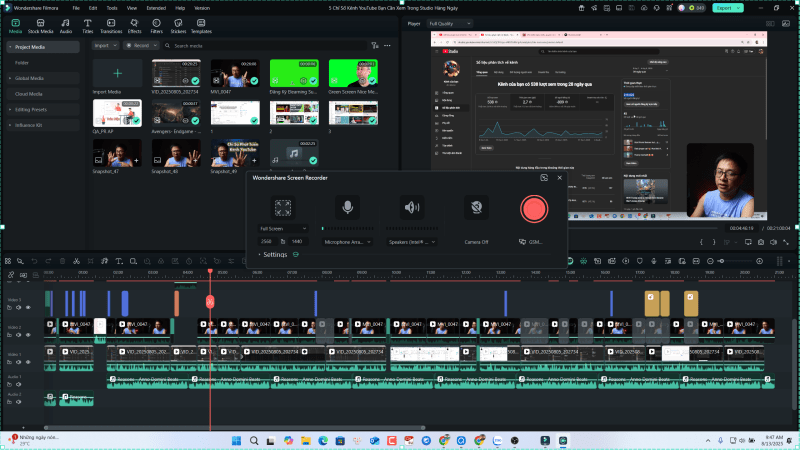
Wondershare Filmora is widely known as a user-friendly video editor, but its integrated screen recorder is an underrated component that deserves its own spotlight. In the latest version, Filmora 14, the screen recorder is more powerful and seamlessly integrated than ever. It strikes a fantastic balance between simplicity and functionality, making it an ideal choice for users who are intimidated by complex software like OBS but need more editing power than a basic screen capture tool provides.
Key Features
- Flexible Recording Options: Easily choose to record your full screen, a custom region, or a specific application window. You can simultaneously record your screen, system audio, microphone, and webcam.
- Seamless Editor Integration: The moment you stop recording, your clip is automatically imported into the Filmora video editor’s timeline. This frictionless workflow is a massive time-saver.
- Rich Editing Tools for Beginners: Filmora’s editor is its main draw. You get access to a huge library of titles, transitions, effects, and audio tracks that can make your screen recordings look vibrant and professional with minimal effort.
- AI-Powered Features: Filmora 14 incorporates AI tools like AI Portrait (to remove your background without a green screen), Auto Reframe (to resize videos for different social media platforms), and Silence Detection to quickly cut out dead air.
- Cursor Effects: Highlight your cursor with different colors, rings, and click sounds to draw attention to important areas during a tutorial.
Pros
- Extremely Easy to Use: The interface is clean, modern, and intuitive for beginners.
- Recorder + Editor Combo: A great two-in-one package for people who want to record and edit in the same application.
- Vast Library of Assets: The included effects, titles, and music can significantly enhance your videos.
- Good Performance: The recorder is lightweight and doesn’t bog down your system.
Cons
- Watermark on Free Version: This is the biggest drawback. All videos exported from the free version of Filmora will have a prominent watermark.
- Subscription Model: To remove the watermark, you need to purchase a subscription, which can be a recurring cost.
Pricing Details
- Free Trial: Allows you to use all features of the screen recorder and editor, but all exported videos will have a watermark.
- Subscription Plan: Typically around $49.99/year or a monthly plan. This removes the watermark and grants access to new effects and updates.
- Perpetual Plan: A one-time purchase (around $79.99) for the current version, which removes the watermark but doesn’t include future major version upgrades.
Want to save your money? Check out Filmora 14 coupon store on our friend’s website!
Who is it Best For? Beginners, YouTubers, and casual users who want an easy-to-use, all-in-one solution for recording and editing and don’t mind a watermark on the free version (or are willing to pay for a polished final product).
4. Camtasia 2025: The Premium Tool with an Underrated Trial
Overview
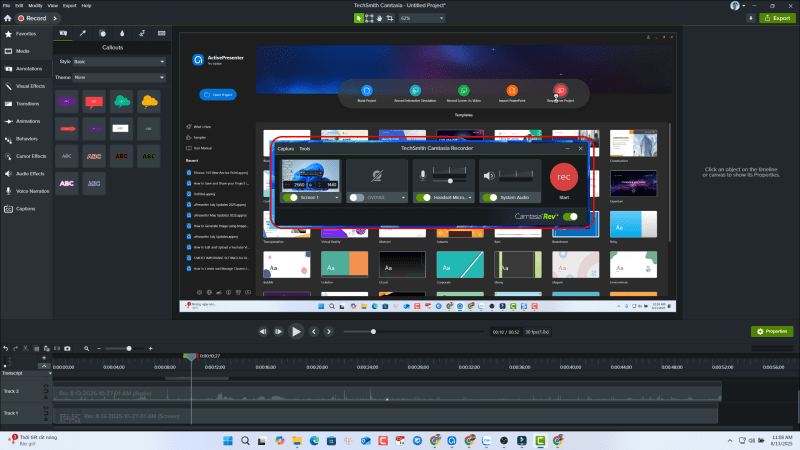
Camtasia from TechSmith is the undisputed king of professional screen recording and video editing for corporate and educational content. So, why is it on an “underrated free” list? Because its fully-featured free trial is an incredibly powerful, albeit temporary, solution that many people overlook. If you have a single, high-stakes project—like a critical business presentation, a set of training modules, or a polished course for sale—the Camtasia trial gives you 30 days of access to the best tool on the market, completely free.
Key Features
- Flawless Screen Capture: Camtasia’s recorder is simple and reliable. It captures your screen, webcam, mic, and system audio in crisp high-definition.
- Best-in-Class Video Editor: This is where Camtasia shines. The editor is designed specifically for screen recordings. It features a magnetic timeline, an enormous library of professional-looking annotations, callouts, transitions, and animations.
- Interactive Hotspots and Quizzing: Similar to ActivePresenter, you can add quizzes and interactive elements to your videos to engage viewers and track their performance (requires hosting on a specific platform).
- Templates and Themes: Create a consistent look and feel across a series of videos with customizable templates and themes for intros, lower thirds, and callouts.
- Cursor Smoothing and Effects: Automatically smooth out erratic mouse movements and add professional cursor effects to guide your audience’s attention.
Pros
- Industry-Standard Polish: Videos made with Camtasia simply look more professional than those made with most other tools.
- Powerful yet Intuitive Editor: Strikes the perfect balance between advanced features and ease of use.
- Excellent Integration: The recorder and editor work together seamlessly.
- The Free Trial is Fully Functional: For 30 days, you get the entire Pro experience.
Cons
- Very Expensive: The full version is one of the most expensive options on the market.
- Trial is Time-Limited: The free access ends after 30 days.
- Watermark on Trial Exports: Videos exported during the trial period will have a watermark. The only way to remove it is by purchasing a license.
Pricing Details
Since 2025, Camtasia offers different pricing model for Camtasia’s users. Different subscription models includes different software in the packages:
- Free Trial: 30-day free trial with full functionality but adds a watermark to all exported videos.
- Camtasia Essentials $178.9 per year/ billed yearly: Jumpstart your video creation with Camtasia’s easy-to-use editor, multi-source video and audio recording, and rich library of free effects and templates.
- Camtasia Create $249 per year/ billed yearly: Speed up your video creation with advanced features like text-based video editing, AI-generated scripts, audio cleanup, and 200+ AI-generated voices.
- Camtasia Pro $599 per year/ billed yearly: Scale your video creation with video reviews, collaboration tools, AI-translated scripts and captions, and access to 100M+ premium assets.
If you are interested in buying a Camtasia license, don’t forget to double check their latest pricing plans on their website at Techsmith.com!
10% Off coupon code: ELEARNINGCAM
Find a discount coupon code on Camtasia store at Jackydeals.com to save your money too!
Who is it Best For? Professionals who need to create a top-tier video for a one-off project and can complete it within the 30-day trial period. It’s a “try-before-you-buy” that doubles as a powerful short-term tool.
5. Bandicam: The Lightweight Performance Champion
Overview
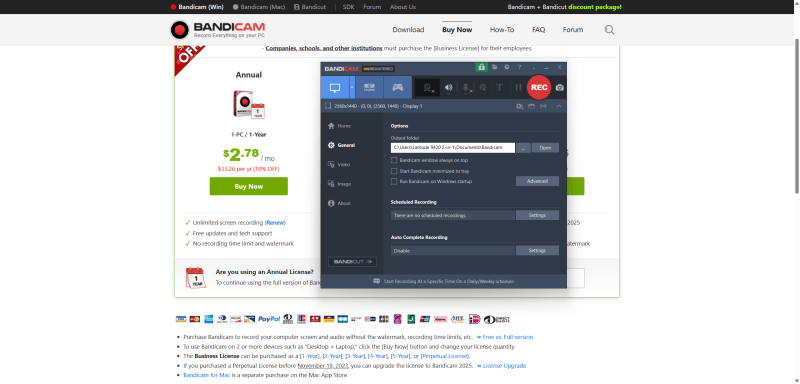
Bandicam has been around for years, but it remains an underrated gem for one key reason: performance. It is an extremely lightweight screen recorder that specializes in capturing high-quality video with minimal CPU usage. This makes it the perfect choice for gamers who want to record gameplay without sacrificing frame rates, or for users on older or less powerful computers. Its interface is simple and to the point, focusing on doing one thing and doing it exceptionally well: recording.
Key Features
- Game Recording Mode: This mode uses DirectX/OpenGL/Vulkan graphics technology to hook directly into your game, allowing for high-frame-rate recording (up to 480 FPS) with less lag than other recorders.
- Selective Screen Recording: Easily draw a rectangle on your screen to record only that specific area.
- Real-time Drawing: Draw, outline, or add text and arrows to your video while you are recording, which is great for on-the-fly tutorials and presentations.
- Scheduled Recording: Set a specific time for Bandicam to start and stop recording automatically, perfect for capturing webinars or live streams you can’t attend.
- Add Webcam Overlay: Easily add a real-time video of yourself from your webcam onto the corner of your screen recording.
Pros
- Excellent Performance: Very low impact on system resources, preserving game FPS and system responsiveness.
- Simple and Easy to Use: The interface is straightforward and easy to navigate.
- High-Quality Output: Can record in high resolutions (up to 4K Ultra HD) and high bitrates.
- Real-time Drawing Feature: A handy tool for live annotations.
Cons
- Free Version Limitations: The free version has a 10-minute recording limit per video.
- Watermark on Free Version: A “www.BANDICAM.com” watermark is placed at the top of all videos recorded with the free version.
- No Built-in Editor: Like OBS, it’s a pure recording tool. You’ll need separate software for editing.
Pricing Details
Bandicam offers both subscription and perpetual license for individuals and bussiness. You can choose a yearly license at $33.26 per year, or $59.78 one time purchase at your own decision. Being mentioned that pricing plans can be changed by the company any time. This is the information in 2025.
- Free Version: Allows recording for up to 10 minutes with a watermark.
- Yearly subscription license: $2.78 / mo – $33.26 per yr (10% OFF).
- Perpetual license: $59.78 –
$87.90(32% OFF). This package includes unlimited recording and video editing.
Don’t forget to check out their pricing detail here at Bandicam website.
Who is it Best For? Gamers, users with older hardware, and anyone who needs a simple, high-performance recorder and doesn’t need built-in editing features.
How to Choose the Right Recorder for You in 2025
With these great options, the choice comes down to your primary need. Ask yourself these questions:
- Do I need to create interactive training or tutorials? Go with ActivePresenter.
- Do I need maximum control and professional streaming capabilities for free? Choose OBS Studio.
- Do I want the easiest, most user-friendly recorder and editor combo? Try Filmora 14.
- Do I need to create one perfect, high-stakes video for a professional project? Use the Camtasia free trial.
- Is my main concern system performance and recording games? Bandicam is your best bet.
The “best” free screen recorder for Windows is the one that best fits your workflow. The good news is that in 2025, you have more powerful, underrated, and free choices than ever before.
 Elearning Supporter
Leave a comment