If you are an Instructional Designer (ID) coming from a teaching, HR, or training background, the technical side of eLearning can feel overwhelming. You likely hear terms like “manifest files,” “API calls,” and “LMS compliance” thrown around in meetings.
For many creatives, the acronym SCORM represents a barrier—a technical hurdle that stands between their great content and the learners.
Here is the good news: You do not need to be a programmer to create SCORM-compliant courses. You do not need to write a single line of code. Today, the heavy lifting is done by SCORM creation software.
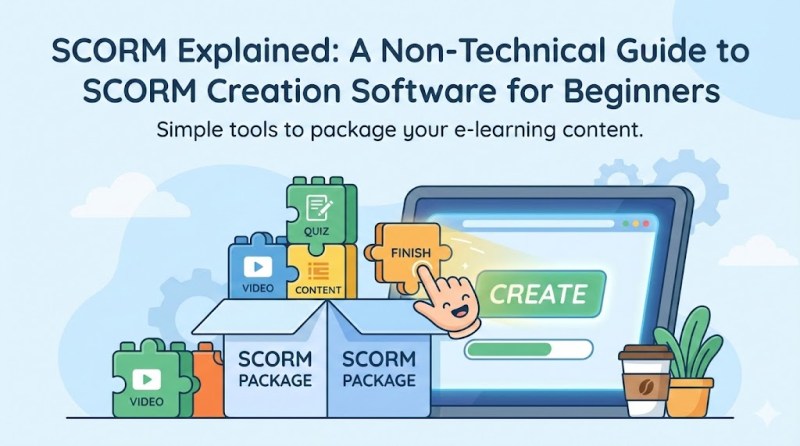
In this guide, we will demystify SCORM, explain why it is essential for your organization, and introduce you to the tools that make creating it effortless.
What is SCORM? (The “Universal Plug” Analogy)
SCORM stands for Sharable Content Object Reference Model. While that sounds like a mouthful of technical jargon, the concept is actually very simple.
Think of SCORM like a USB plug.
Before USB, there were dozens of different plugs for mice, keyboards, printers, and cameras. It was a mess. If you bought a new mouse, you had to hope your computer had the right specific port. The USB standard fixed this by ensuring that any device could plug into any computer.
SCORM does the exact same thing for eLearning:
- The Device: Your eLearning course.
- The Computer: The Learning Management System (LMS) where the course lives (like Moodle, Blackboard, or TalentLMS).
Without SCORM, a course created in one tool might not work on your company’s LMS. With SCORM, you can create a course once, and it will run on almost any LMS in the world.
insert image here
How SCORM Works: The Non-Technical Breakdown
You don’t need to know how to build a car engine to drive a car. Similarly, you don’t need to know the XML coding inside a SCORM package to use it. However, understanding the basic components helps you troubleshoot issues.
When you use SCORM creation software to “Publish” or “Export” your course, the software generates a ZIP folder. Inside that folder, three main things are happening:
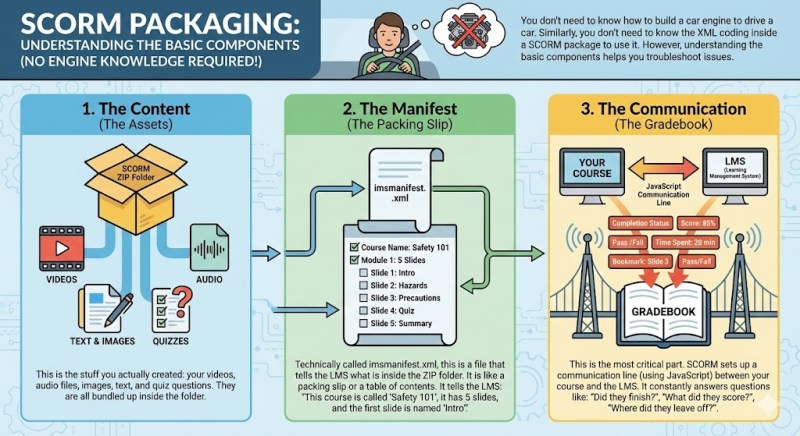
1. The Content ( The Assets)
This is the stuff you actually created: your videos, audio files, images, text, and quiz questions. They are all bundled up inside the folder.
2. The Manifest (The Packing Slip)
Technically called imsmanifest.xml, this is a file that tells the LMS what is inside the ZIP folder. It is like a packing slip or a table of contents. It tells the LMS: “This course is called ‘Safety 101’, it has 5 slides, and the first slide is named ‘Intro’.”
3. The Communication (The Gradebook)
This is the most critical part. SCORM sets up a communication line (using JavaScript) between your course and the LMS. It constantly answers questions like:
- “Did the user finish the video?”
- “Did the user pass the quiz?”
- “How much time did the user spend on this slide?”
The Great Myth: “I Need to Code to Use SCORM”
This is the most common misconception among new Instructional Designers.
Fact: You do not need to learn HTML5, JavaScript, or XML to create SCORM courses.
In the early 2000s, programmers had to manually wrap content to make it compliant. Today, SCORM creation software acts as a translator. You work in a visual interface—dragging and dropping images, typing text, and inserting videos—and the software writes the complex code in the background automatically.
When you hit the “Export” button, the software packages everything perfectly, ready for your LMS.
Finding the Best Desktop eLearning Authoring Tool
Now that you know you need software to do the work for you, the question becomes: Which tool should you use?
Generally, eLearning tools fall into two categories:
- Cloud-Based: These run in your web browser. They are convenient for quick collaboration but often lack deep editing features and require a constant internet connection.
- Desktop-Based: These are installed on your computer. They are generally more powerful, secure, and offer advanced video editing capabilities.
For professional Instructional Designers who want full control over their content without paying monthly subscription fees, finding the best desktop elearning authoring tool is crucial.
A top-tier desktop tool should offer:
- Offline capability: Work anywhere, even without Wi-Fi.
- Security: Your content stays on your machine until you are ready to publish.
- Advanced Video Editing: The ability to record screens and edit video natively (crucial for modern microlearning).
- One-time licensing: Avoid the “software rental” trap of monthly fees.
The Ultimate Solution: Atomi ActivePresenter
If you are looking for a powerful, versatile, and user-friendly SCORM creation software, we highly recommend Atomi ActivePresenter.
ActivePresenter stands out in the crowded market because it is not just an eLearning authoring tool; it is a hybrid all-in-one solution. It combines a professional screen recorder, a video editor, AI tools, and an eLearning authoring platform into one interface.
Here is why ActivePresenter is the smart choice for Instructional Designers:
1. Three Tools in One (The Power of Hybrid)
Most SCORM creation software handles slides well but fails at video. If you want to edit a video tutorial, you usually have to buy separate software (like Camtasia or Premiere Pro), edit the video there, and then import it into your authoring tool.
ActivePresenter eliminates this workflow. You can record your screen, edit the audio, add green screen effects (Chroma Key), and overlay interactive quizzes all in the same timeline. This saves you time and money.
2. Advanced Interactivity Without Coding
ActivePresenter uses a logic-based system called “Events and Actions.” It allows you to build complex scenarios easily.
- Example: “If the user clicks this button, play this sound and show this image.”
- Example: “If the user gets the answer wrong, take them back to Slide 2 to review the content.”
You can create branching scenarios, gamified learning, and software simulations that feel like real apps, maximizing learner engagement.
3. Cost-Effective & Powerful Free Version
Unlike many competitors that hide their best features behind expensive paywalls, ActivePresenter offers a very generous Free Edition. It includes almost all the features of the paid version (Screen recording, video editing, interactions).
When you are ready to export for commercial use or require HTML5 export without a watermark, their Pro licenses are perpetual (one-time purchase), making it arguably the best desktop elearning authoring tool in terms of ROI (Return on Investment).
Step-by-Step: How to Export a SCORM Package in ActivePresenter
To show you how simple it is, here is the workflow for creating a SCORM course using ActivePresenter:
Step 1: Design Your Course Import your existing PowerPoint slides or start from scratch. Use the “Record Screen” feature if you are making a software tutorial. Add your text, images, and characters.
Step 2: Add Interactivity & Quizzes Go to the Questions tab. Insert a Multiple Choice, True/False, or Drag-and-Drop question. ActivePresenter automatically creates the “Report ID” for these questions so the LMS can track them.
Step 3: Configure Pass/Fail Conditions In the Export settings, you can define what “Success” looks like.
- Option A: The user must view 100% of the slides.
- Option B: The user must score 80% or higher on the final quiz.
Step 4: Export to SCORM Click the Export tab and select SCORM.
- Choose your standard: SCORM 1.2 (most common) or SCORM 2004 (better for detailed tracking).
- Click OK.
ActivePresenter will generate a ZIP file. That is your SCORM package.
Step 5: Upload to LMS Log in to your LMS, choose “Upload Course,” and select that ZIP file. You are done!
Here is a quick tutorial video about exporting your project into a SCORM package in ActivePresenter:
Common SCORM Troubleshooting Tips for IDs
Even with the best SCORM creation software, you might run into minor issues. Here are three tips to save you a headache:
- Never Unzip the Package: When ActivePresenter gives you the ZIP file, do not unzip it to “check” the files. Upload the ZIP file directly to the LMS. Unzipping and re-zipping can break the manifest structure.
- Watch the File Size: If your course includes high-definition video, the file size might be huge. Some LMS platforms have an upload limit (e.g., 200MB). In ActivePresenter, check the “Video Quality” settings during export to compress the video without losing visual clarity.
- The “Pop-Up” Blocker: SCORM courses often launch in a new window. If a learner says the course won’t open, ask them to check if their browser is blocking pop-ups.
Conclusion
SCORM is the industry standard that keeps eLearning compatible and trackable. While the technology behind it is complex, your workflow doesn’t have to be.
By choosing the right SCORM creation software, you shift your focus from “How do I code this?” to “How do I teach this?”.
Atomi ActivePresenter empowers you to create responsive, interactive, and video-rich content that works perfectly on any LMS. Whether you are creating a simple compliance quiz or a complex software simulation, it provides the professional power you need with the simplicity you want.
Download Atomi ActivePresenter and discover why it is the best desktop eLearning authoring tool for creators yourself.
 Elearning Supporter
Leave a comment