- Introduction: The Real Cost of “Free” Screen Recording
- Evaluation Criteria: How I Judged These Tools
- #1. ActivePresenter — The All-in-One Free Screen Recorder for Serious Creators
- #2. OBS Studio — The Broadcaster’s Standard (With a Learning Curve)
- #3. ShareX — The Power User’s Free Screen Recorder
- #4. Camtasia (Free Trial) — Professional Grade, With Conditions
- #5. FlashBack Express — Clean, Simple, and Genuinely Free
- Side-by-Side Comparison Table
- Final Verdict: Which Free Screen Recorder Should You Choose?
- Start Recording for Free Today
Introduction: The Real Cost of “Free” Screen Recording
Here’s a frustration I hear constantly from tutorial makers and educators: they spend hours recording a walkthrough, only to export it and find an obnoxious watermark plastered across their content — or worse, the video quality is so compressed it looks like it was recorded through a foggy window.
Over the past decade working in e-learning content production and software reviews, I’ve tested more screen recorders than I can count. And the hard truth? Most “free” tools are either crippled with limitations or quietly pushing you toward a paid upgrade after 10 minutes of use.
The good news: there are genuinely free screen recorders in 2026 that produce clean, high-quality footage — no watermarks, no hidden paywalls on core features. Whether you’re a teacher creating lesson walkthroughs, a developer filming software tutorials, or a content creator building your YouTube channel from scratch, this guide cuts through the noise.
Let’s break down the top 5 options — with honest pros, cons, and pro-level tips you won’t find in most generic reviews.
Evaluation Criteria: How I Judged These Tools
Before diving in, here’s the scorecard I used. A genuinely good free screen recorder should tick most of these boxes:
| Criteria | Why It Matters |
| No watermark on free tier | Non-negotiable for professional YouTube content |
| Full-screen + window + region capture | Flexibility for different recording scenarios |
| System audio + microphone recording | Essential for tutorial voiceovers |
| No recording time limit | Critical for long-form content |
| Built-in video editing | Saves switching between apps |
| High-quality export options (1080p+) | YouTube penalizes blurry uploads |
| Regular updates & active support | Signals long-term reliability |
| Cross-platform support | Windows and/or macOS compatibility |
Now, let’s get into the tools.
#1. ActivePresenter — The All-in-One Free Screen Recorder for Serious Creators
If you’ve only ever thought of ActivePresenter as an e-learning authoring tool, you’re leaving a powerful screen recorder sitting unused on the table.
Developed by Atomi Systems and first released in 2008, ActivePresenter has quietly evolved into one of the most capable free screen recorders available today, with a built-in video editor that rivals standalone paid tools. It runs smoothly on both Windows and macOS, and the free version carries no watermarks and no time limits on recordings. Take a look at my detail tutorial video for better look:
What Makes It Stand Out
- Smart recording modes: Choose from full screen, application window, or custom region — with the option to record multiple monitors simultaneously
- Lossless video capture: Records in a high-fidelity format, so your footage stays sharp even at 4K resolution — no codec degradation before you even start editing
- Dual audio capture: Simultaneously records system audio and microphone input, with independent audio tracks for easy editing
- Non-destructive video editing: Trim, cut, zoom-and-pan, add annotations, insert callouts — all without permanently altering your source recording
- Cursor effects and click highlights: A must-have for software tutorial creators who need viewers to follow along with mouse movements
- Annotation tools: Add text captions, spotlight effects, drawing overlays, and blur sensitive information directly in the timeline
3 Real-World Use Cases
1. IT Helpdesk Tutorial Series
An IT department at a mid-sized company used ActivePresenter to produce a full library of software onboarding videos — recording step-by-step walkthroughs of internal tools, adding click highlights and callout boxes, then exporting as MP4 for their YouTube training channel. Zero watermarks, zero cost.
2. Online Educator Creating a Python Course
A freelance developer recorded coding tutorials in ActivePresenter, using the zoom-and-pan feature to keep viewers focused on the relevant code sections during playback. The clean timeline editor made it easy to cut dead air between takes.
3. Corporate Trainer Building Compliance Videos
A training manager used ActivePresenter’s screen recording combined with its interactive features to create both YouTube-style explainer videos and SCORM-packaged interactive simulations from the same project — a workflow no other free tool on this list supports.
Pro Tips (From Real Experience)
💡 Pro Tip #1: When recording software demos, use ActivePresenter’s “Smart Capture” mode — it automatically detects when you click into a new application window and adjusts the recording frame accordingly. Saves significant editing time later.
💡 Pro Tip #2: Export your YouTube videos using the MP4 (H.264) preset at a constant bitrate of 8-12 Mbps for 1080p content. This hits YouTube’s recommended upload specs while keeping file size manageable.
💡 Pro Tip #3: Use the background noise reduction filter on your microphone track before exporting — especially if you’re recording in a non-studio environment. It’s a hidden gem that most users scroll past.
Pros & Cons
| ✅ Pros | ⚠️ Cons |
| No watermark, no time limit on free tier | Advanced interactive features (SCORM, branching) require paid license |
| Full-featured video editor built-in | Interface has a learning curve for absolute beginners |
| Lossless capture quality | Primarily desktop-based |
| Active development and regular updates | |
| Both Windows and macOS support | |
| Annotation, zoom-pan, cursor effects included |
Best for: Tutorial makers, educators, and content creators who want one tool that handles both YouTube-quality recording and professional editing without switching apps.
👉 Download ActivePresenter Free — no credit card required, no watermark.
#2. OBS Studio — The Broadcaster’s Standard (With a Learning Curve)
OBS (Open Broadcaster Software) Studio is the open-source powerhouse that live streamers and screen recorders have trusted for years. It’s completely free, with no watermarks, no time limits, and a level of configurability that puts most paid tools to shame. I did make a tutorial on how to use OBS Studio too. Take a look at my below video:
Key Features
- Multi-source scene composition (mix webcam, screen, overlays)
- Support for virtually any encoder (x264, NVENC, AMD VCE)
- Free, open-source, cross-platform (Windows, macOS, Linux)
- Virtual camera output for live streaming
Real-World Use Case
A YouTube tech reviewer uses OBS to record multi-source videos — screen recording + webcam overlay + microphone — all simultaneously, then exports directly to MP4 for upload. The multi-scene setup makes it easy to switch between “full screen” and “close-up demo” views.
Pro Tips
💡 Set your base canvas to 1920×1080 and output to the same resolution. Enable the NVENC encoder if you have an NVIDIA GPU — it significantly reduces CPU load during long recordings.
💡 OBS’s Replay Buffer feature is underused: it continuously records in the background and lets you save the last N seconds on demand. Great for capturing unexpected “moments” without recording everything.
Pros & Cons
| ✅ Pros | ⚠️ Cons |
| Completely free and open-source | No built-in video editor — you’ll need a separate tool |
| Highly configurable | Steep learning curve for new users |
| Excellent for live streaming + recording | Interface feels overwhelming at first |
| No recording limits | Requires manual audio sync calibration |
Best for: Content creators who stream live AND record for YouTube, and don’t mind spending time on setup.
#3. ShareX — The Power User’s Free Screen Recorder
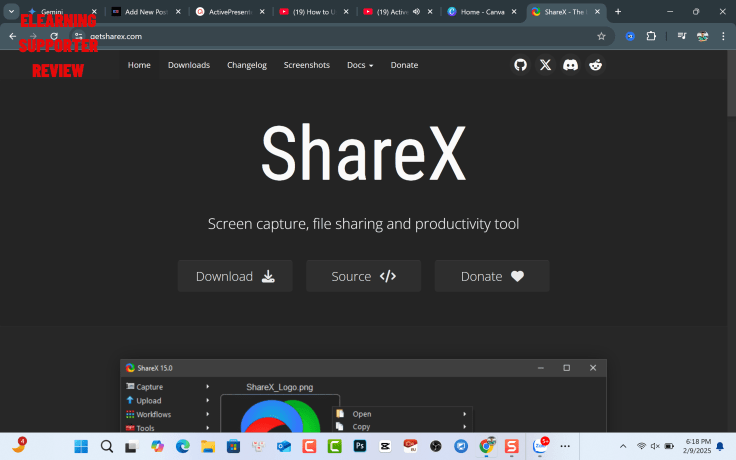
ShareX is a free, open-source tool for Windows that packs an almost unreasonable number of features into a zero-cost package. It’s particularly beloved in the developer and power-user community.
Key Features
- Scrolling capture, GIF recording, and region-specific capture
- Built-in annotation tools (arrows, text, shapes, blur)
- Workflow automation with customizable hotkeys
- Screen recording with system and microphone audio
Real-World Use Case
A UX designer used ShareX to create annotated screen captures and short GIF walkthroughs for product documentation — using the built-in blur tool to redact sensitive client data before sharing publicly on YouTube and internal wikis.
Pro Tips
💡 Use ShareX’s Task Settings > After Capture Actions to automate your workflow: record → auto-annotate → copy to clipboard → upload to cloud in one keystroke chain.
Pros & Cons
| ✅ Pros | ⚠️ Cons |
| Completely free, no watermark | Windows only |
| Extensive feature set | Video editor is basic compared to ActivePresenter |
| Automation workflows | Can feel cluttered for casual users |
| GIF and scrolling capture | No macOS support |
Best for: Windows power users who want deep customization and workflow automation.
#4. Camtasia (Free Trial) — Professional Grade, With Conditions
Let’s be transparent: Camtasia is not truly free. However, its free trial is fully functional with no recording limits — the only catch is a watermark on exported videos until you purchase.
Why It Still Makes This List
If you’re evaluating tools before committing to a purchase, or if you just need a handful of high-quality videos in a short window, Camtasia’s trial gives you access to one of the most polished video editors in the tutorial-making space.
Key Features
- Drag-and-drop video editor with a clean timeline
- Pre-built animations, transitions, and callout templates
- Interactive quizzes and viewer engagement features
- 1080p+ export quality
Pro Tips
💡 Use Camtasia’s SmartFocus feature during the trial to test whether auto-zoom fits your content style — it’s one of the genuinely unique features that differentiates it from free alternatives.
Pros & Cons
| ✅ Pros | ⚠️ Cons |
| Extremely polished editing interface | Watermark on free trial exports |
| Great for beginners | One-time purchase price is significant |
| Large template library | Heavier system requirements |
| Active user community | Not sustainable as a “free” solution |
Best for: Creators seriously evaluating paid tools who want to benchmark quality before purchasing.
#5. FlashBack Express — Clean, Simple, and Genuinely Free
FlashBack Express is the “no-frills but no-excuses” option on this list. It does exactly what most YouTube tutorial creators need — records screen, webcam, and audio — with no watermarks and no time limits on the free version.
Key Features
- Record screen, webcam, and audio simultaneously
- Includes basic editing in FlashBack Player
- Export to AVI, WMV, and MP4
- Minimal setup required
Real-World Use Case
A high school teacher with no video production background used FlashBack Express to record and upload weekly lecture recaps to their classroom YouTube channel. The simple interface meant zero learning curve — record, trim, export, done.
Pro Tips
💡 FlashBack Express records in its own .fbr format, so always remember to export to MP4 before uploading to YouTube. Keep the original .fbr file as a backup — it retains higher quality than the exported version.
Pros & Cons
| ✅ Pros | ⚠️ Cons |
| Genuinely free with no watermark | Windows only |
| Simple, beginner-friendly interface | Limited editing compared to ActivePresenter |
| Simultaneous screen + webcam recording | No macOS support |
| Advanced features require paid upgrade |
Best for: Beginners and educators who want a dead-simple recording tool with zero watermark and minimal setup.
Side-by-Side Comparison Table
| Feature | ActivePresenter | OBS Studio | ShareX | Camtasia (Trial) | FlashBack Express |
| Truly free (no watermark) | ✅ | ✅ | ✅ | ❌ (trial) | ✅ |
| No time limit | ✅ | ✅ | ✅ | ✅ | ✅ |
| Built-in video editor | ✅ Advanced | ❌ | ✅ Basic | ✅ Advanced | ✅ Basic |
| macOS support | ✅ | ✅ | ❌ | ✅ | ❌ |
| Annotations & callouts | ✅ | Limited | ✅ | ✅ | Limited |
| Zoom & pan effects | ✅ | ❌ | ❌ | ✅ | ❌ |
| Cursor effects | ✅ | ❌ | ❌ | ✅ | ❌ |
| Audio noise reduction | ✅ | ❌ | ❌ | ✅ | ❌ |
| Learning curve | Moderate | High | Moderate | Low | Low |
| Best for | All-in-one creators | Streamers | Power users | Evaluation only | Beginners |
Final Verdict: Which Free Screen Recorder Should You Choose?
After a decade in this space, here’s my honest take:
- If you want one tool that records, edits, and produces professional YouTube content without ever touching a second app → ActivePresenter is the clear choice. The free tier is genuinely generous, and it’s one of the only tools here that supports both high-quality YouTube export and interactive e-learning authoring from the same platform.
- If you’re a streamer who also records → OBS Studio is your standard.
- If you’re on Windows and love automation → ShareX delivers remarkable value.
- If you’re a total beginner → Start with FlashBack Express and upgrade when you outgrow it.
- If you’re evaluating a premium tool → Take Camtasia’s trial for a spin, but go in knowing the watermark is there.
Start Recording for Free Today
The best time to start building your YouTube tutorial library was yesterday. The second best time is right now — with the right tool.
👉 Download ActivePresenter for free and produce your first watermark-free, high-quality YouTube video today. No credit card. No time limit. No watermark.
Already using ActivePresenter? Join the Atomi Systems community to share your projects, get expert tips, and stay updated on the latest features.
Have questions about which tool fits your specific workflow? Drop them in the comments — I read every single one.
 Elearning Supporter
Leave a comment