Finding a screen recorder that doesn’t embarrass you mid-project is harder than it should be. You download something promising, record for 45 minutes, and then discover a watermark stamped across every frame or worse, the app cuts your session off at the 15-minute mark right before the most important part. After more than a decade of building eLearning content, training videos, and software tutorials, I’ve made every one of those mistakes so you don’t have to.
This list isn’t based on spec sheets. I tested each of these 7 tools across real teaching scenarios: lecture capture, corporate onboarding, Udemy course production and ranked them on criteria that actually matter to educators and content creators. Here’s exactly what I found.
| Feature | ActivePresenter | OBS Studio | ShareX | ScreenPal | Xbox Game Bar |
| Platform | Win, macOS | Win, macOS, Linux | Windows | Web + Desktop | Windows only |
| Price | Free / One-time paid | Free forever | Free forever | Free / Subscription | Free (built-in) |
| Watermark | ✅ None | ✅ None | ✅ None | ✅ None | ✅ None |
| Time Limit | ✅ Unlimited | ✅ Unlimited | ✅ Unlimited | ⚠️ Limited | ✅ Unlimited |
| Built-in Editor | ✅ Advanced multi-track | ❌ None | ❌ Basic | ✅ Basic | ❌ None |
| Annotations | ✅ Comprehensive | ❌ None | ✅ Screenshots only | ✅ Basic | ❌ None |
| eLearning (SCORM) | ✅ Pro version | ❌ | ❌ | ❌ | ❌ |
| Learning Curve | Medium | High | Medium | Low | Very Low |
| Best For | Trainers, educators | Streamers, tech users | IT, documentation | Casual, quick shares | Single-app quick capture |
How I Evaluated These 7 Screen Recorders (My 5-Point Criteria)
Before diving into the rankings, here’s the evaluation framework I used. Every tool was scored across five dimensions:
- Recording Quality — Does it capture clean 1080p+ video without dropped frames?
- Audio Capture — Can it record system audio and microphone simultaneously?
- Time Limits & Watermarks — Is the free tier genuinely usable for professional work?
- Built-in Editing — Can you trim, annotate, and polish inside the same app?
- Learning Curve — How long before a first-time user produces something they’re not embarrassed to share?
With that framework established, let’s get into the rankings.
The 7 Best Screen Recorders for PC in 2026
1. ActivePresenter — Best All-in-One for eLearning & Training Videos
Platform: Windows, macOS
Price: Free (Pro upgrade available — one-time license)
Watermark: ✅ None in free version
Time Limit: ✅ Unlimited
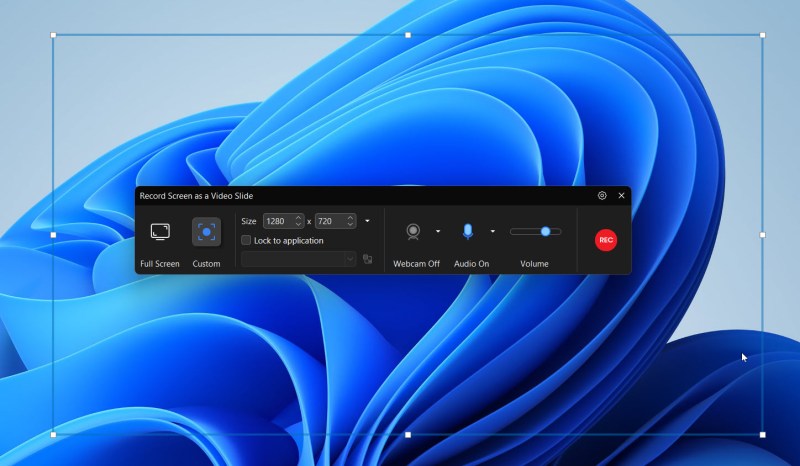
If I could only recommend one tool on this entire list, it would be ActivePresenter and it’s not a close competition. In over a decade of producing screen-recorded content, I haven’t found another free tool that combines unlimited recording, zero watermarks, simultaneous microphone + system audio capture, and a professional multi-track video editor inside a single application.
What Makes ActivePresenter Stand Out
Most screen recorders force you into a frustrating two-app workflow: record in Tool A, edit in Tool B, export from Tool B, and pray nothing breaks in the handoff. ActivePresenter eliminates that entirely. You record, edit, annotate, add interactive quizzes, and publish, all without leaving the application.
Key features that matter for educators:
- 🎬 Multi-track timeline editor with non-destructive editing — your original recording is never permanently altered
- 🎙️ Simultaneous audio capture — system sound and microphone recorded as separate, editable tracks
- 📝 Annotation toolkit — callouts, zoom-n-pan effects, blur (for sensitive data), closed captions, and more
- 🖱️ Smart cursor effects — highlight clicks, add click sounds, smooth cursor movement automatically
- 📊 eLearning authoring — build SCORM/xAPI-compliant courses with quizzes, branching scenarios, and LMS publishing (Pro)
- 💾 Offline-first — no account required, no cloud dependency, no subscription lock-in
3 Real-World Scenarios Where ActivePresenter Delivers
Scenario 1: Corporate Software Training for a 200-Person Team
A training manager needs to onboard 200 employees onto a new CRM platform. With ActivePresenter, they record a 45-minute walkthrough of the CRM interface, use zoom-n-pan to highlight key fields, add text callouts explaining each step, and export as an interactive SCORM package that tracks completion inside their LMS. Total post-production time: under 2 hours.
Scenario 2: University Lecture Capture (75-Minute Sessions)
A professor records a full 75-minute lecture — no time limits, no interruptions. After class, they split the recording into five 15-minute microlearning segments, add captions for accessibility compliance, and upload to the university portal. The entire workflow stays inside one application.
Scenario 3: Freelance Course Creator Building for Udemy
A course creator records a series of software tutorials. They record at 1440p for flexibility, then use ActivePresenter’s zoom effects in post to highlight small UI elements without re-recording. The final videos export as crisp MP4 files — no watermark, no branding from the tool, just clean professional content ready for upload.
Pros & Cons: An Honest Assessment
| ✅ Pros | ❌ Cons |
| Truly free: no watermark, no time limit | Advanced eLearning features require paid upgrade |
| Built-in multi-track video editor | No Linux version (Windows & macOS only) |
| Annotation tools rival expensive paid alternatives | Interface has a learning curve for first-time users |
| One-time license (no subscription) if you upgrade | |
| Offline — no account or cloud required | |
| Non-destructive editing preserves original recordings |
Bottom line: If you’re creating training content, tutorials, or eLearning courses, ActivePresenter is the most capable free tool available in 2026. Nothing else on this list offers this combination at zero cost.
Download ActivePresenter for free here!
2. OBS Studio — Best for Raw Capture Power
Platform: Windows, macOS, Linux
Price: Free (open-source, forever)
Watermark: ✅ None
Time Limit: ✅ Unlimited
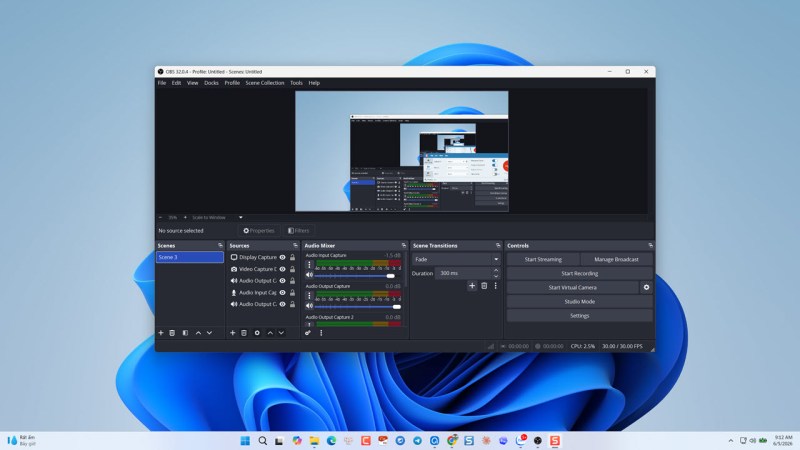
OBS Studio is the gold standard for pure screen capture. It’s open-source, cross-platform, and has zero restrictions — no watermarks, no time limits, no premium tier. If your workflow is “record the screen, get the file, edit elsewhere,” OBS is bulletproof.
What it does exceptionally well:
- Scene-based recording — layer screen capture, webcam, browser windows, and images simultaneously
- High-performance capture up to 4K resolution and high frame rates
- Built-in audio mixer with noise suppression, gain control, and per-source filters
- Live streaming to YouTube, Twitch, and custom RTMP servers
The honest caveat: OBS has no built-in editor. Once you stop recording, you have a video file — and you’re on your own for post-production. For educators who need annotations, callouts, or interactive elements, OBS is a starting point, not a complete solution.
Best for: Streamers, tech-savvy users, and anyone who needs maximum capture flexibility and plans to edit in a dedicated tool like DaVinci Resolve or Premiere Pro.
3. ShareX — Best for Quick Captures & Screenshots
Platform: Windows only
Price: Free (open-source)
Watermark: ✅ None
Time Limit: ✅ Unlimited
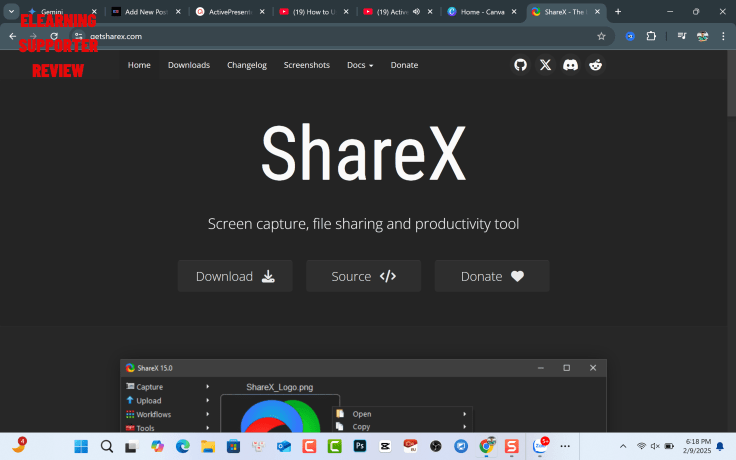
ShareX is the Swiss Army knife of capture tools. It handles screen recording, scrolling screenshots, region capture, and GIF creation — all with an extensive automation and workflow system that power users love.
Where it shines: ShareX’s annotation tools for screenshots are genuinely excellent. Arrows, text, blurs, highlights — everything you’d want for quick documentation or support tickets.
Where it falls short: The video editing capabilities are minimal. ShareX is a capture-and-annotate tool, not a video production environment. For anything beyond basic trimming, you’ll need an external editor.
Best for: IT professionals, technical writers, and anyone who needs fast, flexible capture with strong screenshot annotation — not full video production.
4. ScreenPal (formerly Screencast-O-Matic) — Best for Casual Quick Shares
Platform: Web + Desktop (Windows, macOS)
Price: Free tier available; subscription for premium features
Watermark: ✅ None on free recordings
Time Limit: ⚠️ Limited in free tier
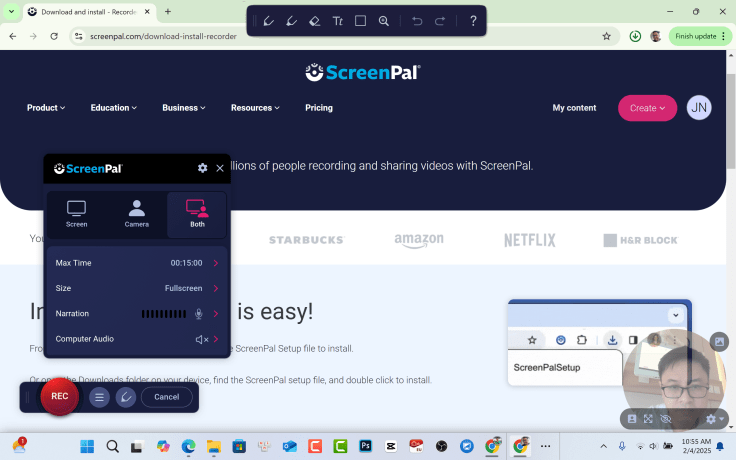
ScreenPal’s greatest strength is its minimal friction. You can be recording within 60 seconds of opening the app — no configuration, no scene setup, no learning curve. For teachers who need to record a quick 5-minute explainer and share a link immediately, it’s genuinely hard to beat.
The limitation to know: The free tier has recording time restrictions, and the editing tools are basic (trim and cut, essentially). For professional course production, you’ll quickly feel the ceiling.
Best for: Teachers, casual users, and anyone who needs to record something short, share it fast, and move on.
5. Xbox Game Bar — Best for Zero-Setup Windows Recording
Platform: Windows 10/11 (built-in)
Price: Free (included with Windows)
Watermark: ✅ None
Time Limit: ✅ Unlimited
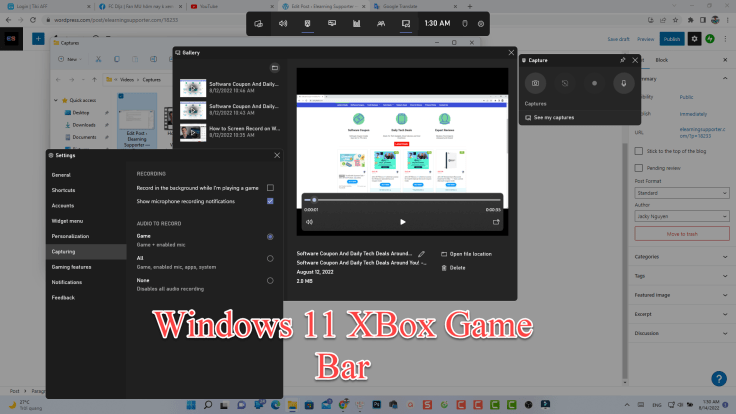
Already on your PC. Press Win + G to open it. For recording a single application window quickly — especially software demos — it’s surprisingly capable. The output quality is solid, and because it uses hardware acceleration, it’s extremely lightweight on system resources.
The hard limitation: Xbox Game Bar can only record a single application window at a time. It cannot capture the full desktop. For any tutorial that involves switching between applications, it’s immediately disqualified.
Best for: Quick single-app recordings when you need something captured immediately with zero setup.
6. Loom — Best for Async Team Communication
Platform: Web + Desktop + Browser Extension
Price: Free tier (5-minute limit per video); paid plans available
Watermark: ✅ None
Time Limit: ⚠️ 5-minute cap on free tier
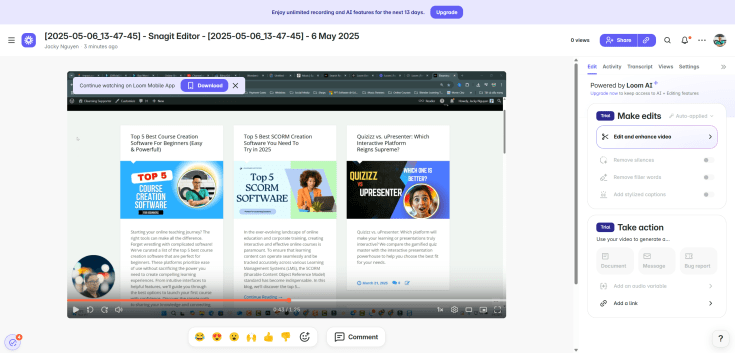
Loom has carved out a specific niche: async video messaging for teams. Record your screen, get an instant shareable link, and your colleague can watch, comment, and react without scheduling a meeting. For internal communication, it’s excellent.
For course creation or training content? The 5-minute free tier limit is a dealbreaker, and the editing tools are too basic for professional production.
Best for: Remote teams, project managers, and anyone replacing email threads with quick video explanations.
7. Camtasia — Best Premium Option (If Budget Allows)
Platform: Windows, macOS
Price: Paid (free trial available)
Watermark: ⚠️ Watermark on trial exports
Time Limit: ✅ Unlimited (paid)
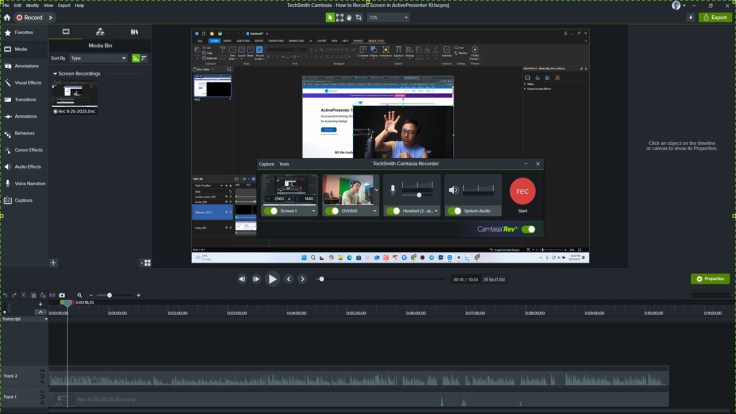
Camtasia is the industry benchmark for premium screen recording and video editing. Its timeline editor is polished, its annotation library is extensive, and its learning curve is gentler than professional video editors like Premiere Pro.
The honest reality in 2026: Camtasia is excellent — but at its price point, it’s hard to justify when ActivePresenter’s free tier offers comparable recording quality and editing depth without the cost. Camtasia makes sense for organizations with budget and teams already invested in the TechSmith ecosystem.
Best for: Enterprise teams with budget, or creators who want a premium experience and are willing to pay for it.
Download free trial of Camtasia here!
The Decision Framework: Which Tool Should You Actually Use?
Stop comparing feature lists in a vacuum. Answer this one question first: What happens after you hit “Stop Recording”?
- “I need to edit, annotate, and produce a polished training video or eLearning course.”
→ ActivePresenter. It’s the only free tool that gives you unlimited recording, a serious editing suite, and eLearning authoring capabilities in one application. - “I just need the cleanest, most reliable raw capture. I’ll edit in another app.”
→ OBS Studio. Nothing beats it for pure recording power and flexibility. - “I need to record something short, share it fast, and get back to work.”
→ ScreenPal or Loom. Minimal friction, maximum speed. - “I’m on Windows and need something right now with zero setup.”
→ Xbox Game Bar. It’s already there. Press Win + G and go.
Final Verdict: The Best Screen Recorder for PC in 2026
After testing all 7 tools across real teaching and training scenarios, ActivePresenter earns the top recommendation for anyone creating professional screen-recorded content in 2026.
The math is simple: it’s the only free tool that eliminates the three most common failure points — watermarks that undermine your professionalism, time limits that interrupt your workflow, and the forced context-switch between a recorder and a separate editor. For educators, trainers, and course creators, those three problems aren’t minor inconveniences. They’re the difference between finishing a project and abandoning it.
OBS Studio earns a strong second place for users who prioritize raw capture quality and have a dedicated editing workflow. And for quick, low-stakes recordings, ScreenPal and Xbox Game Bar remain genuinely useful tools.
But if you’re serious about producing training content that reflects your expertise? Start with ActivePresenter.


Leave a Reply