Here’s a pattern I’ve watched play out for a decade straight: An educator decides to create video content. They Google “best video editor.” They download something built for YouTubers or filmmakers. They spend three evenings learning a timeline that has nothing to do with teaching. They export a file with a watermark stamped across their carefully prepared slides. They quit.
I’ve been that person. And over ten years of building e-learning content — from corporate onboarding simulations to university lecture series — I’ve learned that the best video editor for an educator isn’t the most powerful one. It’s the one that disappears into your workflow. The one where you’re thinking about your lesson, not about keyframes.
This guide is the result of hands-on testing across dozens of projects. Every tool here meets three non-negotiable criteria: genuinely beginner-friendly, no watermark on exports, and actually useful for the kind of content educators produce. Not cinematic B-roll. Not TikTok transitions. Real instructional content that helps students learn.
Quick Comparison: Which Video Editor Matches Your Teaching Workflow?
| Tool | Screen Recording | eLearning/SCORM Export | No Watermark | Learning Curve | Best Educator Use Case |
| ActivePresenter | ✅ Built-in | ✅ SCORM, xAPI, HTML5 | ✅ | Moderate | Interactive courses & software training |
| DaVinci Resolve | ❌ | ❌ | ✅ | Steep | High-production lecture films |
| Canva | ❌ | ❌ | ✅ | Very Low | Quick explainer videos |
| Shotcut | ❌ | ❌ | ✅ | Low-Moderate | Lecture editing on any OS |
| Clipchamp | 🟡 Basic | ❌ | ✅ | Low | Microsoft 365 educators |
| OpenShot | ❌ | ❌ | ✅ | Low | Simple lecture assembly |
| Kdenlive | ❌ | ❌ | ✅ | Moderate | Multi-track course editing on Linux |
| OBS Studio | ✅ Recording only | ❌ | ✅ | Moderate | Screen capture (requires separate editor) |
| CapCut | ❌ | ❌ | ✅ | Low | Short-form educational clips |
| VSDC | ❌ | ❌ | ✅ | Moderate | Feature-rich editing on Windows |
Let’s get into it.
- Quick Comparison: Which Video Editor Matches Your Teaching Workflow?
- How I Evaluated These Tools (And Why Most “Top 10” Lists Get It Wrong)
- The 10 Best Beginner-Friendly Video Editors for Educators in 2026
- 1. ActivePresenter — The One Built Specifically for Educators
- 2. DaVinci Resolve — For Educators Who Want Cinematic Production Quality
- 3. Canva Video Editor — The Fastest Path from Zero to Published
- 4. Shotcut — Open-Source Flexibility Without the Complexity of Resolve
- 5. Clipchamp (Microsoft) — Best for Educators Already in the Microsoft Ecosystem
- 6. OpenShot — The Gentlest Introduction to Timeline Editing
- 7. Kdenlive — The Power User’s Open-Source Choice
- 8. OBS Studio + Any Editor — The Screen Recording Foundation
- 9. CapCut (Desktop) — Best for Short-Form Educational Content
- 10. VSDC Free Video Editor — A Hidden Gem for Windows Educators
- 5 Insider Tips for Educators New to Video Editing
- The Bottom Line: Match the Tool to the Task, Not the Feature List
How I Evaluated These Tools (And Why Most “Top 10” Lists Get It Wrong)
Most comparison articles judge video editors on feature count. More features = higher ranking. That logic fails educators completely. A color grading node tree is useless when you need to record a PowerPoint walkthrough with a quiz at the end.
Here’s what actually matters when you’re building course content:
| Evaluation Criteria | Why It Matters for Educators |
| Time to First Export | Can you produce a usable video within your first session? |
| No Watermark on Free Tier | Students and administrators notice. Watermarks signal “unfinished.” |
| Screen Recording Integration | Most educator content starts with a screen capture, not a camera. |
| Annotation & Callout Tools | Highlighting UI elements, adding arrows, spotlighting clicks — this is the language of instructional video. |
| Export Flexibility | MP4 for YouTube, HTML5 for LMS, SCORM for compliance tracking — you need options. |
| Learning Curve vs. Payoff | A tool that takes 40 hours to learn must deliver proportionally more value. |
With that framework in mind, here are the ten tools that actually earned their place.
The 10 Best Beginner-Friendly Video Editors for Educators in 2026
1. ActivePresenter — The One Built Specifically for Educators
Platform: Windows, macOS
Learning Curve: Moderate (but the payoff is enormous)
Best For: Instructional designers, corporate trainers, university lecturers, IT educators
If I could only recommend one tool to an educator who’s never edited video before, this is it. Not because it’s the simplest (Canva is simpler), but because it’s the only free tool that treats “teaching” as a first-class use case, not an afterthought.
ActivePresenter combines screen recording, video editing, and full eLearning authoring in a single application. No watermark on exports. No “upgrade to unlock basic features” traps. You record your screen, edit on a non-destructive timeline, add interactive quizzes and branching scenarios, and export directly to SCORM or xAPI for your LMS — all without opening a second app.
What Sets It Apart:
- Screen Recording + Editing in One Workflow: Record your screen, webcam, and system audio simultaneously, then edit everything on the same timeline. This alone eliminates the most common bottleneck in educator video production.
- Interactive eLearning Elements: Add quizzes, click simulations, drag-and-drop interactions, and branching scenarios directly onto your video timeline. No other free tool on this list does this.
- Smart Capture Mode: This is the feature that converts skeptics. When recording software tutorials, Smart Capture automatically detects mouse clicks and keystrokes, creating interactive simulation layers you can later turn into graded assessments — without any manual annotation work.
- Text-to-Speech & Closed Captions: Generate narration automatically and add accessible captions. Essential for accessibility compliance and multilingual training environments.
- Multi-Format Export: MP4 for video platforms, HTML5 for web deployment, SCORM 1.2, SCORM 2004, and xAPI for direct LMS integration.
Real-World Scenarios I’ve Seen Work:
- Corporate Software Training: An HR team at a financial institution uses ActivePresenter to build interactive software simulations for onboarding new banking staff — complete with scored quizzes and SCORM packages uploaded directly to their LMS. New hires practice transactions on a simulation before touching the live system.
- IT Helpdesk Tutorials: An IT support team creates step-by-step screen recording walkthroughs for internal ticketing systems, exported as MP4 and embedded into their intranet wiki. Ticket volume for “how do I…” questions dropped measurably.
- University Lecture Series: A lecturer records slideshow presentations with voiceover, adds knowledge-check questions at key moments, and publishes as an HTML5 package students access on any device.
✅ Pros:
- No watermark on free version
- Screen recording + editing + eLearning authoring in one tool
- SCORM/xAPI export — extraordinarily rare in free software
- Lightweight — runs well on average hardware
- Active community and thorough documentation
❌ Cons:
- Not designed for cinematic video editing (color grading is basic)
- The interactive features have a learning curve (budget 2-3 hours to get comfortable)
- Fewer trendy social media effects (no TikTok-style templates)
💡 Pro Tip: When creating software tutorials, always use Smart Capture mode instead of Full Motion Recording. It produces dramatically smaller file sizes and automatically generates the click-event data you need for interactive simulations. I’ve seen this single workflow choice cut tutorial production time by 40%.
2. DaVinci Resolve — For Educators Who Want Cinematic Production Quality
Platform: Windows, macOS, Linux
Learning Curve: Steep
Best For: Educators producing documentary-style content, lecture films, or channel-based video series
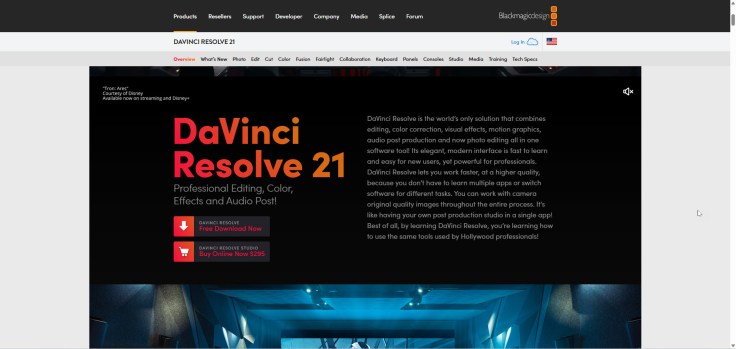
DaVinci Resolve is the industry standard for color grading and professional post-production. The free version is staggeringly capable — no watermark, no time limit, and a feature set that rivals paid software costing hundreds annually. Hollywood studios use this tool.
But here’s my honest assessment: most educators don’t need it, and many will bounce off it. The interface assumes you understand professional editing terminology. If you’ve never heard of “nodes,” “scopes,” or “Fairlight,” expect a steep onboarding curve.
That said, if you’re an educator producing high-production-value content — think documentary-style course films, multi-camera lecture recordings, or a YouTube education channel where visual polish is part of your brand — Resolve is unmatched at this price point (free).
Key Features for Educators:
- Industry-leading color grading with HDR support
- Fairlight audio studio for cleaning up lecture recordings (noise reduction, EQ, compression)
- Multi-camera editing with automatic audio sync
- Fusion visual effects for motion graphics and lower thirds
✅ Pros: Professional-grade output, no watermark, massive community and tutorial ecosystem
❌ Cons: Steep learning curve, resource-heavy (needs decent GPU), no eLearning-specific features, no screen recording
💡 Pro Tip: If you’re using Resolve for lecture editing, learn the Fairlight page first — not the Color page. Cleaning up audio quality makes a bigger impact on student engagement than any visual polish.
3. Canva Video Editor — The Fastest Path from Zero to Published
Platform: Web-based (works on any OS)
Learning Curve: Very Low
Best For: Educators who need quick, visually polished videos with minimal editing experience
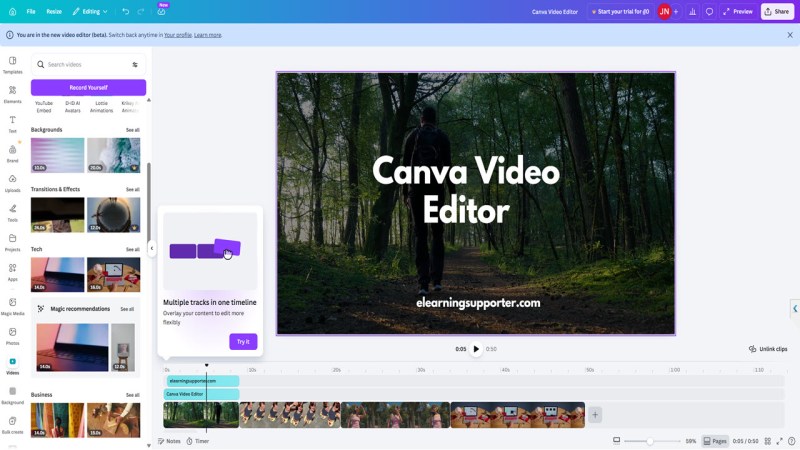
Canva’s video editor is the tool I recommend when someone says “I need a video by tomorrow and I’ve never edited before.” It’s template-driven, drag-and-drop, and produces clean results fast. The free tier includes no watermark on exports.
Best for: Short explainer videos, animated presentations, social media clips for course promotion
Not ideal for: Screen recordings, interactive content, anything longer than 10 minutes
✅ Pros: Near-zero learning curve, beautiful templates, web-based (no installation)
❌ Cons: Limited timeline control, no screen recording, no eLearning export formats, constrained for complex projects
4. Shotcut — Open-Source Flexibility Without the Complexity of Resolve
Platform: Windows, macOS, Linux
Learning Curve: Low to Moderate
Best For: Educators comfortable with traditional timeline editing who want full control without cost
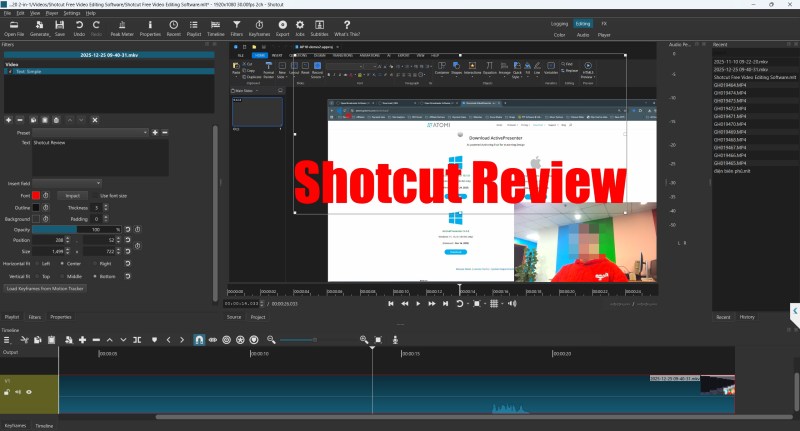
Shotcut is a genuine open-source video editor — no watermark, no freemium upsells, no account required. It supports a wide range of formats and offers a real multi-track timeline with filters, transitions, and keyframe animation.
Best for: Editing recorded lectures, trimming webinar recordings, assembling multi-clip course modules
Not ideal for: Interactive content, screen recording (you’ll need a separate tool)
✅ Pros: Truly free and open-source, cross-platform, broad format support, no account needed
❌ Cons: Interface feels dated, occasional stability issues on large projects, no built-in screen recording
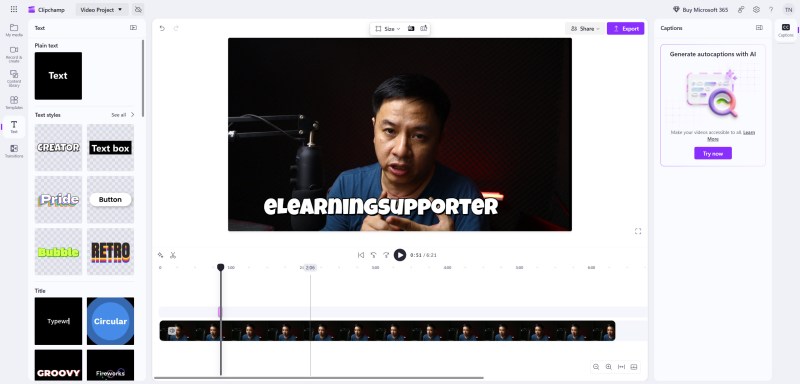
5. Clipchamp (Microsoft) — Best for Educators Already in the Microsoft Ecosystem
Platform: Windows, Web
Learning Curve: Low
Best For: K-12 teachers and university staff using Microsoft 365
If your institution runs on Microsoft 365, Clipchamp is already in your app drawer. It offers a clean, browser-based editing experience with no watermark on exports at 1080p. The integration with OneDrive and Teams makes it frictionless for educators who live in that ecosystem.
Best for: Quick lecture recaps, student-facing announcement videos, Teams-integrated content
Not ideal for: Advanced editing, eLearning interactivity, Linux users
✅ Pros: Pre-installed on Windows 11, clean interface, stock media library, Teams integration
❌ Cons: Limited advanced features, web-dependent performance, no SCORM/eLearning export
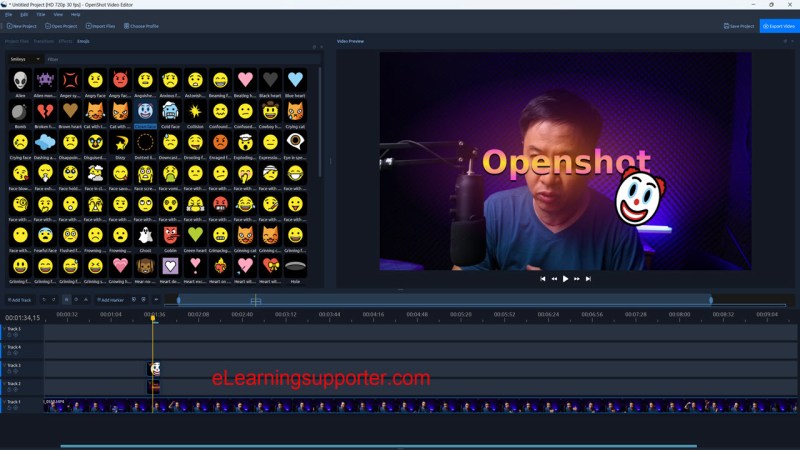
6. OpenShot — The Gentlest Introduction to Timeline Editing
Platform: Windows, macOS, Linux
Learning Curve: Low
Best For: Educators who want a simple, traditional video editor without the overhead
OpenShot is what I point people toward when Shotcut feels like too much and Canva feels like too little. It’s open-source, straightforward, and handles the basics — trimming, transitions, titles, and simple effects — without overwhelming new users.
Best for: Trimming and assembling recorded lectures, adding title cards and transitions
Not ideal for: Screen recording, interactive content, complex multi-track projects
✅ Pros: Very intuitive interface, open-source, lightweight
❌ Cons: Can be unstable with large files, limited effects library, no screen recording or eLearning features
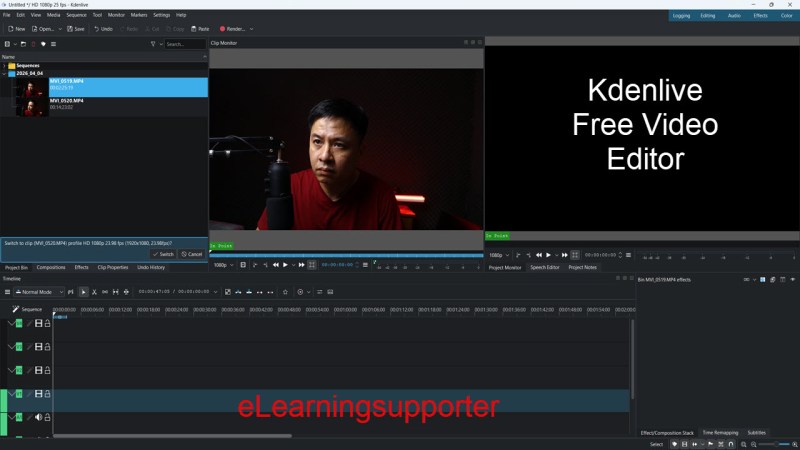
7. Kdenlive — The Power User’s Open-Source Choice
Platform: Windows, macOS, Linux
Learning Curve: Moderate
Best For: Tech-savvy educators who want open-source with more capability than OpenShot
Kdenlive bridges the gap between OpenShot’s simplicity and Resolve’s complexity. It offers multi-track editing, keyframeable effects, proxy editing for smoother performance, and a solid titling tool — all without watermarks or cost.
Best for: Editing longer course videos, multi-track audio/video projects, educators on Linux
Not ideal for: Beginners with zero editing experience, interactive eLearning content
✅ Pros: Powerful for open-source, good proxy editing support, active development community
❌ Cons: Occasional crashes on Windows, steeper curve than OpenShot, no screen recording
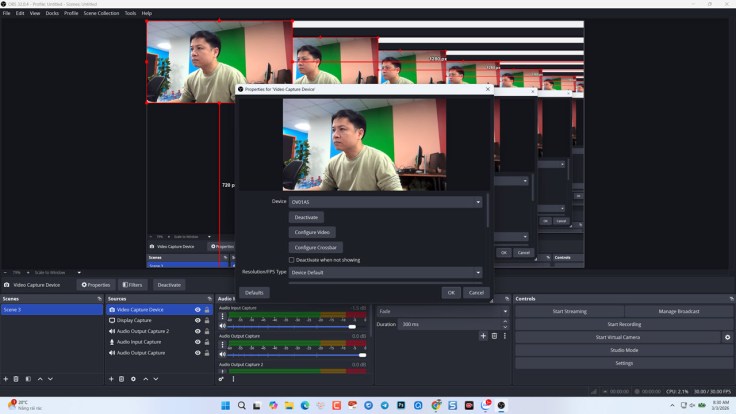
8. OBS Studio + Any Editor — The Screen Recording Foundation
Platform: Windows, macOS, Linux
Learning Curve: Moderate
Best For: Educators who primarily need screen recording and are willing to edit in a separate tool
OBS Studio isn’t a video editor — it’s a screen and live-streaming recorder. But I’m including it because the majority of educator video projects start with a screen capture, and OBS is the most capable free recording tool available. Pair it with any editor on this list for a complete workflow.
Best for: Recording live lectures, capturing software demonstrations, streaming to platforms
Not ideal for: Editing, interactive content, one-tool workflows (this is where ActivePresenter’s integrated approach saves significant time)
✅ Pros: Industry-standard recording quality, scene-based workflow, massive plugin ecosystem
❌ Cons: No editing capability, requires a second tool, configuration can intimidate beginners
💡 Pro Tip: If you find yourself constantly recording your screen and then switching to a separate editor, that’s a workflow tax you’re paying on every single video. Tools like ActivePresenter eliminate this by combining recording and editing in one timeline — a difference that compounds into hours saved per month.
9. CapCut (Desktop) — Best for Short-Form Educational Content
Platform: Windows, macOS
Learning Curve: Low
Best For: Educators creating short-form video for social platforms or student engagement clips
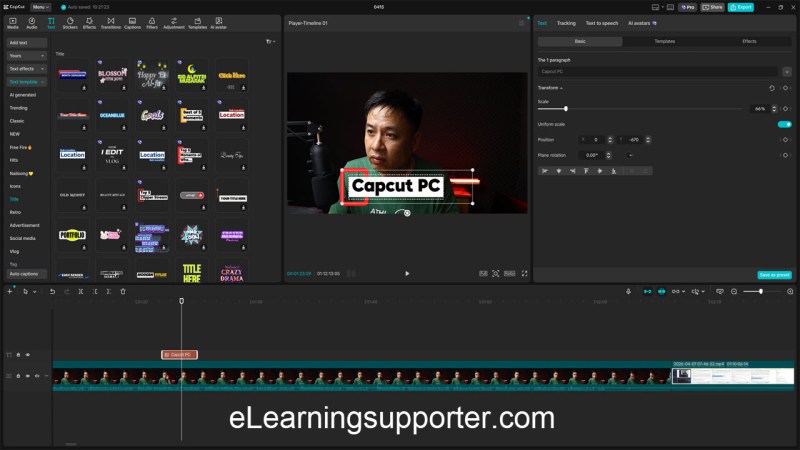
CapCut’s desktop app offers a surprisingly capable editor with auto-captions, a rich effects library, and no watermark on exports. It’s optimized for the kind of short, punchy content that works on social media — and increasingly, inside modern LMS platforms that support embedded video.
Best for: 1-5 minute explainer clips, student engagement content, promotional videos for courses
Not ideal for: Long-form lectures, interactive eLearning, SCORM export, privacy-sensitive environments (review data policies)
✅ Pros: Excellent auto-captioning, trendy effects and templates, very easy to learn
❌ Cons: Data privacy concerns for institutional use, limited long-form editing capability, no eLearning features
10. VSDC Free Video Editor — A Hidden Gem for Windows Educators
Platform: Windows only
Learning Curve: Moderate
Best For: Windows-based educators who need more capability than basic editors but can’t install Resolve
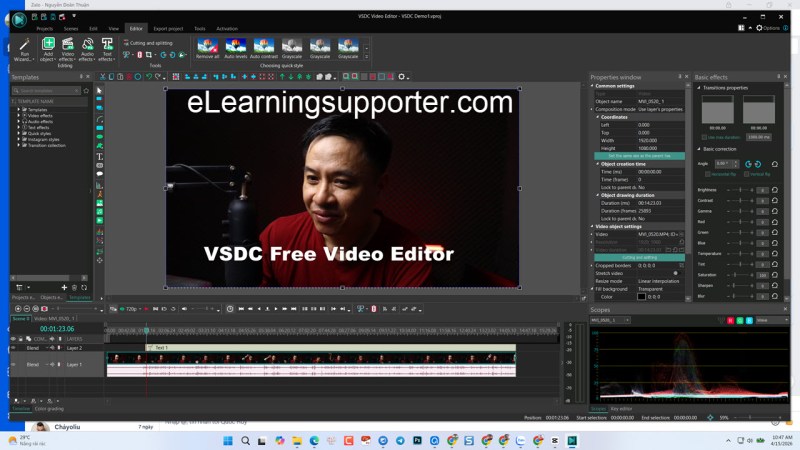
VSDC is a non-linear editor that punches above its weight class. The free version includes chroma key, masking, color correction, and audio editing — all without watermarks. It’s less known than other tools on this list, but it’s been quietly reliable for years.
Best for: Green screen lecture recordings, picture-in-picture tutorials, educators on older Windows hardware
Not ideal for: Mac/Linux users, interactive content, eLearning-specific workflows
✅ Pros: Feature-rich free tier, low hardware requirements, no watermark
❌ Cons: Windows only, interface can feel cluttered, no screen recording or eLearning export
5 Insider Tips for Educators New to Video Editing
These are lessons that took me years to learn. Save yourself the time:
1. Always test-export a 1-minute clip before committing to a full project. Performance issues, watermark surprises, and format incompatibilities all reveal themselves at export time — not during editing. This single habit has saved me from restarting projects more times than I can count.
2. Audio quality matters more than video quality. Students will tolerate a 720p screen recording. They will not tolerate echo, background hum, or clipping. Invest your first $30 in a USB microphone, not a webcam upgrade. In post-production, learn noise reduction before you learn color correction.
3. If you’re building for an LMS, check your export format requirements first. Nothing is more frustrating than producing a beautiful 45-minute video only to discover your LMS needs SCORM 2004 packages with quiz tracking — and your editor only exports MP4. This is precisely where tools like ActivePresenter save you from painful rework.
4. Use keyboard shortcuts from day one. In every editor on this list, learning just five shortcuts (cut, undo, play/pause, zoom in/out on timeline, and save) will double your editing speed within the first week. Don’t rely on menus.
5. Optimize your file sizes for your delivery platform. A 4K MP4 is meaningless if your students are streaming over spotty campus WiFi. For most educational content, 1080p at a moderate bitrate (8-12 Mbps) hits the sweet spot between quality and accessibility. When exporting HTML5 packages from ActivePresenter, use the built-in compression settings — they’re tuned for web delivery.
The Bottom Line: Match the Tool to the Task, Not the Feature List
After a decade of building educational content, here’s what I’ve come to believe: the right video editor is the one that lets you focus on teaching, not on editing.
If you’re building interactive courses, software simulations, or any content that needs to live inside an LMS — ActivePresenter is the clear starting point. It’s the only tool on this list that unifies screen recording, video editing, and eLearning authoring into a single free application with no watermark. That integration isn’t a convenience — it’s a fundamentally different (and faster) way to produce instructional content.
If your needs are purely cinematic, DaVinci Resolve is unmatched. If you need something in the next 30 minutes, Canva will get you there. Every tool on this list has a legitimate place in an educator’s toolkit.
But don’t just take my word for it. Download ActivePresenter free and build your first project. Record a 5-minute software walkthrough, add a quiz question, and export it. The entire process will take less time than you spent reading this article — and you’ll immediately understand why thousands of educators have made it their primary tool.
Your students are waiting. Go build something.
Last updated: April 15, 2026
 Elearning Supporter
Leave a comment