Disclosure: eLearning Supporter may earn a commission when you buy through some links on this page. It does not change how we evaluate products. Prices were checked on October 30, 2026 and can change.
The Short Answer
A slide deck is not an LMS-ready course simply because its file extension changes. A good PowerPoint to SCORM converter must preserve the content you already have, let you add the interactions you actually need, and report the right completion or assessment data back to your learning management system. The right choice depends on whether your team prioritizes one-time licensing, familiar PowerPoint workflows, or sophisticated custom interactions.
For a team that creates software tutorials alongside interactive lessons, ActivePresenter deserves a pilot. iSpring Suite is compelling for instructors who want to stay inside PowerPoint. Articulate Storyline is appropriate for teams whose courses depend on rich branching and custom logic. None should be selected without publishing a representative lesson to the destination LMS and checking its actual reports.
Quick Comparison: Which PowerPoint to SCORM Tool Fits?
| Tool | Best fit | Licensing & price (US list, at time of review) |
|---|---|---|
| ActivePresenter | Screen-recorded training plus interactive courses; standalone authoring workflow | Standard $249, Pro $499, one-time (perpetual). Confirm SCORM entitlement per edition before buying. |
| iSpring Suite | Teams building around PowerPoint | Subscription from $970 per author/year (base Suite) |
| Articulate Storyline (Articulate 360 AI) | Detailed branching and advanced interactions | $1,449 (personal) and $1,749 (Teams) per seat/year |
What Actually Happens When You Convert PowerPoint to SCORM?
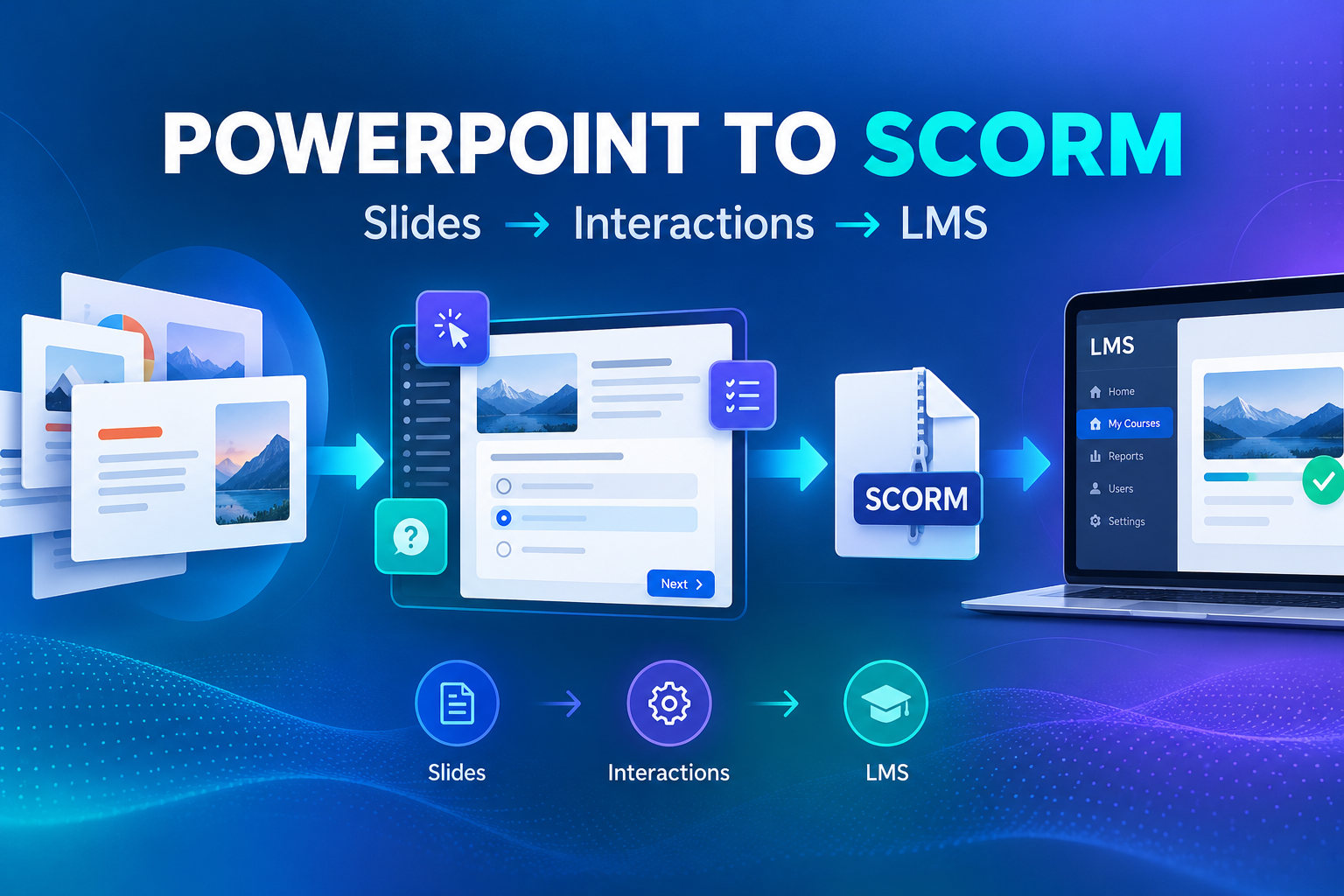
PowerPoint is a presentation authoring format. SCORM is a packaging and runtime communication standard for courses that launch in a compatible LMS. A published SCORM ZIP normally contains web content and a manifest describing how the LMS should launch it. The LMS then records selected statuses and results based on the package, standard and platform configuration. A ZIP that uploads successfully can still fail to record the result your administrator expects.
Decide whether your real objective is to play a narrated presentation, assess knowledge, demonstrate a workflow, or have learners practise decisions. A linear slide show might need only navigation and completion. Regulatory training could require a passing score, attempt rules and resume. A sales onboarding lesson might benefit from role-play branching, with the same PowerPoint slides used as visual starting points.
Four Non-Negotiable Checks Before Comparing Vendors
- LMS compatibility: ask your administrator whether the platform prefers SCORM 1.2, SCORM 2004, xAPI or cmi5. These standards are not interchangeable.
- Report definition: establish whether success means viewing all pages, reaching the end, passing a quiz or completing a simulation.
- Reusability: verify whether narration, animations, fonts, hyperlinks and slide notes survive import, and whether source files remain editable.
- Licensing: distinguish evaluation access, watermark-free publishing, commercial usage rights and annual subscription costs.
1. ActivePresenter: For Teams That Need More Than Imported Slides
Developed by Atomi Systems, ActivePresenter combines screen recording, multi-track video editing and authoring for interactive software-based training. That combination is useful when a PowerPoint course describes how an employee uses an application: the same project can include a visual explanation, a recorded demonstration, and learner practice. It is a separate authoring environment rather than a simple PowerPoint ribbon add-in, so factor a short learning period into the evaluation.
Key Features Worth Testing
- PowerPoint import can provide a foundation for course scenes; authors can add narrated demos, questions and interactive objects where their edition allows them.
- Software recording workflows suit procedures where a screenshot and prose would be hard to follow.
- Object states, events, conditions, question types and responsive design are listed as eLearning editing features in Atomi’s current edition matrix.
- Video outputs are not a substitute for interactive HTML5 or SCORM, because interactivity does not transfer into ordinary MP4.
Pros and Cons
- Pros: one environment spans recording, editing and interactive content; attractive for software onboarding; perpetual license rather than a recurring author subscription; Windows and macOS builds.
- Cons: users accustomed to PowerPoint need to learn a different authoring interface; advanced eLearning features are edition-dependent; a beautiful simulation still needs LMS and accessibility testing; the official pricing summary and feature matrix disagree about Standard’s SCORM publishing rights.
Pricing Plans and Best Fit
The official US pricing page currently shows ActivePresenter Standard at $249 per license and Pro at $499 per license, both perpetual per-machine licenses, with an initial one-year major-version upgrade entitlement. The detailed feature comparison currently assigns HTML5, SCORM/xAPI and eLearning editing to Pro, whereas the short pricing bullets mention those exports for Standard as well. For a production SCORM purchase, request explicit confirmation from Atomi sales before choosing Standard.
Best fit: trainers who combine screen tutorials, simulations, quizzes and LMS-based tracking. For a hands-on walkthrough, see Atomi’s guide on how to convert PowerPoint to SCORM, and compare the latest edition details before purchase. You can also read our ActivePresenter 10 Pro review.
Check the current price: ActivePresenter Pro (the edition Atomi’s feature matrix lists with SCORM/xAPI publishing) · ActivePresenter Standard. (Affiliate links.)
2. iSpring Suite: For PowerPoint-First Training Teams
iSpring Suite is built around a familiar PowerPoint-first workflow. It is especially appealing when subject-matter experts already maintain polished PowerPoint lessons and want to add quizzes, voiceovers, branching interactions or other training elements without learning a wholly new slide editor. The vendor documents SCORM, xAPI and other LMS exports, as well as course interactions and quiz types. Test the exact PowerPoint animation and media behavior in a trial, because preserving a deck’s appearance is not the same as preserving every instructional interaction.
Pros, Cons, Pricing and Best Fit
- Pros: familiar authoring experience; fast conversion of an existing slide library; extensive assessment options; strong match for PowerPoint-heavy L&D departments.
- Cons: less natural when the core deliverable is repeated software simulation; ongoing author subscriptions must be budgeted; complex branching can make a slide-based course difficult to maintain.
- Pricing: the published base iSpring Suite price was $970 USD per author/year when checked; iSpring Suite AI was listed at $1,290 per author/year. The right tier depends on required add-ons and collaboration capabilities.
- Best fit: teams with a substantial PowerPoint library, regular updates and authors already comfortable in Microsoft Office.
3. Articulate Storyline: For Custom Interactive Experiences
Storyline, included in the Articulate 360 authoring platform, is a more customizable course-development environment. Triggers, states, layers, branching and variables allow designers to build scenarios that respond to learner decisions. It supports publishing LMS packages including SCORM 1.2, SCORM 2004, xAPI and cmi5. The benefit is fine control over behavior; the trade-off is more design, QA and maintenance effort for complex projects.
Pros, Cons, Pricing and Best Fit
- Pros: powerful branching scenarios; detailed interaction design; team review and adjacent platform tools.
- Cons: higher recurring author-seat cost; greater risk of overengineering a basic slide conversion; careful testing required across devices and accessibility patterns.
- Pricing: Articulate 360 AI advertised personal pricing of $1,449 and Teams pricing of $1,749 per seat/year on the checked pricing page. Contract, education and regional terms may differ.
- Best fit: experienced eLearning teams producing complex, high-stakes decision simulations that justify the extra design time.
How to Convert PPTX to SCORM in 6 Steps
Whichever tool you shortlist, use the same six-step pilot so the results are comparable.
Step 1: Audit the Existing Presentation
Pick a 10–15-slide representative lesson, not the longest deck. Identify learning objectives, remove redundant slide introductions, check font licenses, and highlight where the learner should make a decision. Create a simple course map: explain → demonstrate → practice → assess. If a slide contains only a long paragraph, rewrite it into a worked example or a decision prompt before conversion.
Step 2: Import and Verify Content Fidelity
Import the PPTX in the authoring tool and compare slide dimensions, embedded media, animation timing, navigation and text rendering with the original. Make a list of elements to rebuild. Avoid treating converted slide objects as automatically accessible: check reading order, alt text and keyboard focus in the resulting course.
Step 3: Add Interactions That Reflect the Learning Objective
A quiz should measure comprehension rather than merely break up slides. For example, a software-policy module could ask which customer record should be updated and provide useful feedback for each option. Add practice when a learner must carry out a process. If the selected tool only converts slides, keep the lesson simple instead of forcing elaborate branching into a weak workflow.
Step 4: Configure Reporting Before Export
Ask the LMS administrator which package standard is supported and how completion, success and score are displayed. Decide whether the learner must pass a final assessment, view all content, or meet a composite requirement. Configure retries and passing threshold deliberately. Document these decisions so another editor can reproduce the package when slides change.
Step 5: Export a SCORM ZIP, Then Test in a Staging LMS
Use the authoring tool’s LMS publishing command, select the validated standard and export the package. Upload the ZIP directly unless the LMS requires another procedure. Run at least three scenarios: the learner completes successfully; the learner fails and retries; the learner exits halfway and resumes. Review the learner record as both learner and LMS administrator. Confirm score, completion, success, resume and attempt history, not just whether the course opens.
Step 6: Maintain the Source and Release Notes
Keep the editable source alongside the exported ZIP. Record version number, publishing settings, date, test LMS, passing threshold and known issues. When PowerPoint content changes, republish and rerun the critical report tests. A five-minute regression test can prevent an entire cohort from completing an untrackable course. For a shorter, beginner-level walkthrough, see how to convert PowerPoint to SCORM in 5 simple steps.
How to Choose: Three Scenarios
- A small consulting firm revises a few slide courses each year and dislikes recurring license commitments: pilot a perpetual-license tool such as ActivePresenter, but verify the Pro/SCORM entitlement and editing effort.
- A large compliance team works directly from weekly PowerPoint updates and has several subject experts: prioritize iSpring’s PowerPoint integration and review collaboration costs.
- A corporate L&D team creates interactive branching decisions with custom states and feedback: evaluate Storyline, then estimate both development and maintenance costs before purchase.
Frequently Asked Questions
Quick answers to the questions buyers ask most often before converting PowerPoint courses.
Can You Turn PPTX Into SCORM for Free?
Trial access may let you test conversion, but unrestricted commercial publishing should not be assumed. Check the product’s feature matrix and commercial license. A free export may include limitations or a watermark.
Does SCORM Guarantee Progress Tracking?
No. The package must send the relevant data and the LMS must interpret it correctly. Test completion and score reporting with real learner accounts.
Is SCORM 2004 Always Better Than SCORM 1.2?
Not necessarily. Choose the standard your LMS reliably supports and the reporting behavior your course requires. A newer standard that the destination LMS handles poorly is a bad choice. Our SCORM 1.2 vs. SCORM 2004 guide covers the differences in more detail.
What Is the Best PowerPoint to SCORM Tool?
For slide-centric production, test iSpring. For recording-plus-simulation workflows, test ActivePresenter. For extensive custom interaction logic, test Storyline. Use the same sample lesson and LMS acceptance checklist for all three.
Verdict
The best converter is not necessarily the one that imports slides fastest; it is the one that delivers maintainable learning and reliable LMS data at a sensible total cost. Start with a real pilot, document the results, and check current licenses. If software simulations and screen recording are central to your course library, review ActivePresenter’s authoring capabilities and current pricing.
👉 Ready to buy? Get ActivePresenter Pro or ActivePresenter Standard at the current price. If SCORM publishing is a must, choose Pro or confirm Standard’s entitlement with Atomi first. (Affiliate links: we may earn a commission at no extra cost to you.)


Leave a Reply