Disclosure: eLearning Supporter may earn a commission when you buy through some links on this page. It does not change how we evaluate products. Details were checked on October 30, 2026 and can change between releases.
The Bottom Line
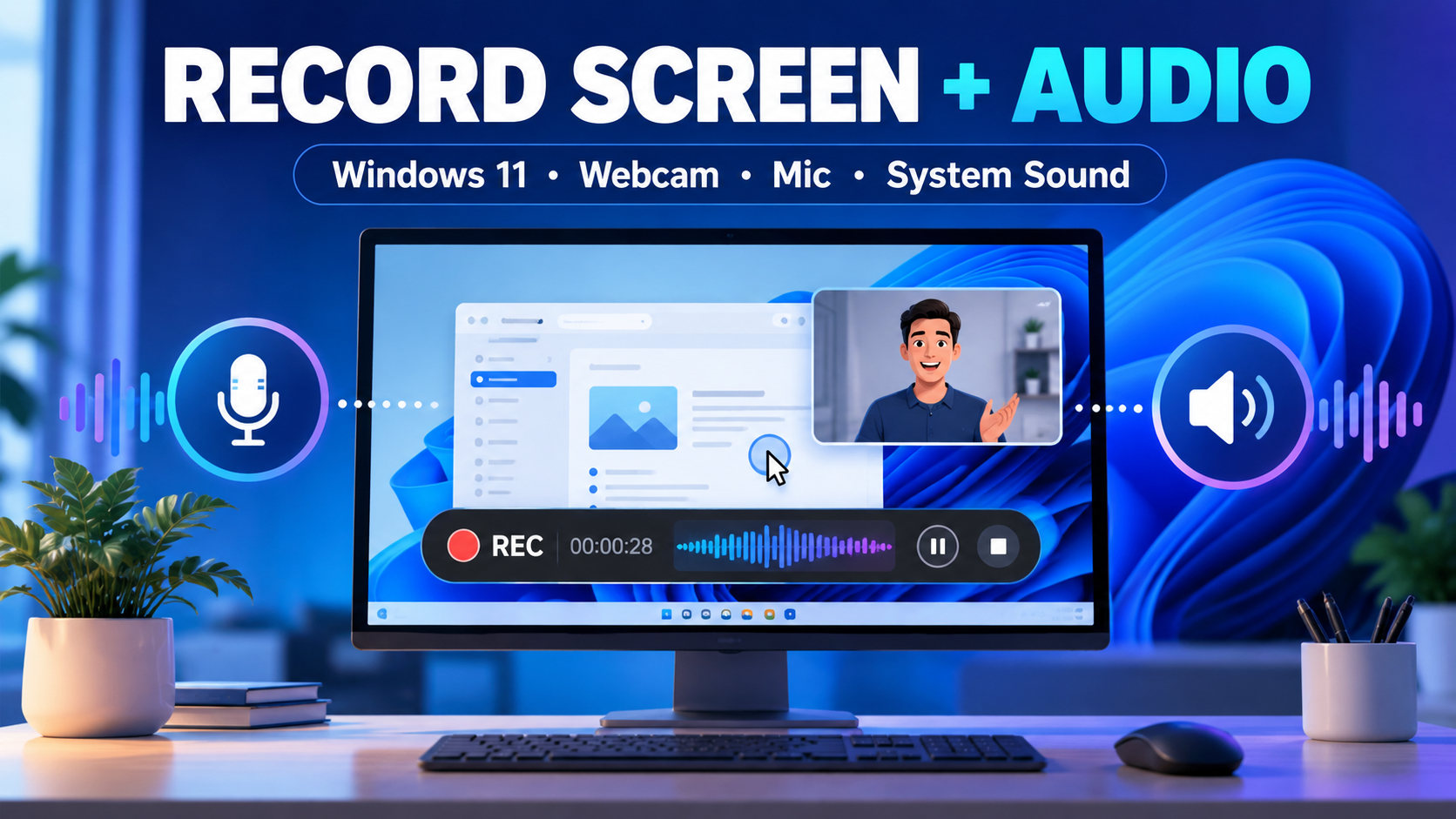
The hardest part of recording a Windows tutorial is rarely clicking Record. It is getting a clean combination of screen, webcam, narration and computer playback without muted tracks, private notifications or a distracting camera overlay. This guide compares three genuinely different ways to use a screen recorder on Windows 11 with audio and walks through a reproducible capture checklist.
How we compared: workflow fit, feature availability, licensing and the friction a real team faces during production: setup time, how easily an author can repeat a workflow, whether the output plays on the target device and how quickly revisions can be made. “Best fit” is a recommendation for a user situation, not a claim that comparative lab testing was completed. Build a small sample before relying on marketing checkmarks, especially for audio routing and webcam capture.
At-a-Glance Comparison
| Tool | Best fit | Pricing |
|---|---|---|
| Windows 11 Snipping Tool | A support agent demonstrating a single menu change, or a user reporting a short bug | Included with Windows 11 |
| OBS Studio | Creators recording long demonstrations, multiple cameras or highly customized scenes | Free and open source |
| ActivePresenter | Teams building reusable software tutorials or onboarding videos | Free edition (feature and usage terms apply); Standard and Pro are paid perpetual licenses |
1. Windows 11 Snipping Tool
Built into supported Windows 11 installations, Snipping Tool is useful when you need a short, simple clip rather than a complex production. Open Snipping Tool, choose screen recording, select an area, and check the version-specific microphone and system-audio controls. A quick recording may save setup time, but device options, capture restrictions and editing controls vary with updates. If you want to stay with built-in tools, our guide on screen recording on Windows 11 without third-party software covers more options.
- Pros: quick capture, little installation overhead, simple sharing.
- Cons: less control over multiple sources and post-production; camera compositing and audio routing should not be assumed.
- Pricing: included with Windows 11; no separate license for the built-in tool.
- Best fit: a support agent demonstrating a single menu change or a user reporting a short bug.
2. OBS Studio
OBS is an open-source production tool designed for configurable scenes and sources. You can combine display/window capture, webcam, desktop audio and microphone in one scene and manage levels through the audio mixer. Set canvas/output resolution deliberately, name each source, and use a test recording to check whether the webcam blocks the process being demonstrated.
- Pros: flexible multi-source composition; strong audio controls; no purchase required.
- Cons: more configuration and potential audio routing mistakes; advanced editing happens elsewhere.
- Pricing: free and open source under its published license; download from the official OBS website.
- Best fit: a creator recording long demonstrations, multiple cameras or a highly customized scene.
3. ActivePresenter
Developed by Atomi Systems, ActivePresenter is built for people who record tutorials and then turn them into polished training materials. Capture a screen activity, inspect the result in its timeline and use supported edits to remove mistakes and add instructional context. Some advanced objects and commercial workflows require paid editions; this distinction matters more than whether a short test clip appears watermark-free.
- Pros: one project can move from recording to editing; helpful when tutorials evolve into training.
- Cons: not a streaming-first studio; some advanced tools require a license; verify camera and audio capabilities in the installed build.
- Pricing: free edition subject to feature and usage terms; Standard and Pro are paid perpetual licenses. See ActivePresenter pricing for current rates.
- Best fit: teams building reusable software tutorials or onboarding videos.
Check the current price: ActivePresenter Standard · ActivePresenter Pro. (Affiliate links.)
Before You Record: Choose Your Capture Setup
Record a 20-second sample containing a spoken sentence, a Windows notification sound you are authorized to capture, a cursor movement and webcam motion. Listen on headphones and look for clipped audio, echo or timing drift. Close email, password managers and personal browser tabs; enable Do Not Disturb and use a fictional customer record for demonstrations.
Step by Step: Record Your Windows 11 Screen With Webcam and Audio in ActivePresenter
- Install the current Windows build from Atomi Systems and create a screen recording project.
- Choose a full display or a controlled region, and select the available audio inputs.
- Make one short capture and verify the microphone and system sound independently.
- If a webcam feed is needed, verify your edition’s webcam recording/overlay workflow in the application rather than assuming every source can be captured in one mode.
- Record the complete task with short pauses after significant steps.
- Inspect the timeline, split mistaken takes, adjust volume and preview at the intended playback size.
- Export MP4 and play it in another application to confirm the result.
Troubleshooting
Most capture problems come down to audio routing or protected windows. Check these two first.
Microphone Works but System Sound Is Missing
Check Windows Privacy & Security microphone permissions and the recorder’s chosen input/output devices. A Bluetooth headset can change audio profiles when its microphone activates. Make sure application sound is not routed to a different playback device. Turn off enhancement or exclusive-mode settings only when they are clearly causing interference. Test one change at a time with the same sample clip; do not assume a silent track can be repaired after recording.
Black Screen, Cursor Problems and Webcam Lag
Protected video, administrator windows, hardware-accelerated applications and security prompts can resist ordinary capture. Try an authorized window capture mode or change source settings rather than bypassing content protections. Keep camera resolution realistic for the machine, monitor CPU load and use even lighting. Move the webcam inset away from key controls, and check the final output for desynchronized lip motion.
“No Watermark” Is Not the Same as Permission for Every Use
A clean MP4 output only proves what appeared in that export. It does not prove that advanced objects were free or that a free license permits client-facing commercial work. Review current license terms, export limitations and the differences between the Free, Standard and Pro feature sets before relying on “unlimited commercial recording” claims.
Which Windows 11 Screen Recorder Should You Choose?
Choose Snipping Tool for a fast, occasional screen clip. Choose OBS if you need precise scene composition and live audio mixing. Choose ActivePresenter when recording is the beginning of a documented editing or training workflow. Do a five-minute pilot with the same task in two tools rather than deciding by the longest feature list. For more options, see our list of the best screen recorders for PC in 2026.
Frequently Asked Questions
Short answers to the questions Windows 11 users ask most often about screen recording.
Can Windows 11 Record Internal Audio?
Capabilities depend on the recording app and version. Check the settings and test playback before recording the full tutorial.
Does a Webcam Have to Appear in the Final Video?
No. Add it only when it helps learners.
What Format Should I Export?
MP4/H.264 is a practical common default, subject to your platform’s requirements.
Can a No-Watermark File Be Sold or Used Commercially?
Only according to the tool’s license.
Final Recommendation
Choose the tool that solves the actual publishing problem, not the one with the longest checklist. Windows 11 Snipping Tool suits a support agent demonstrating a single menu change. OBS Studio suits a creator recording long demonstrations or highly customized scenes. ActivePresenter suits teams building reusable software tutorials or onboarding videos. Start with a sample, verify the resulting file, then compare total author effort alongside licensing. For training-centered capture and authoring, explore the free screen recorder for Windows and Mac from Atomi Systems.
👉 Need more than the free edition? Get ActivePresenter Standard for recording and editing, or ActivePresenter Pro if you also need interactive eLearning and SCORM output. (Affiliate links: we may earn a commission at no extra cost to you.)


Leave a Reply